PDF files have become a normal part of my daily work. Whether I am studying, preparing documents, sharing assignments, or managing important files, I often find myself working with PDFs. One thing that I have needed many times is splitting a PDF into separate pages or smaller files. Sometimes a PDF contains many pages, but I only need a few of them. Sending the complete document in that situation can be unnecessary and inconvenient.
The good thing is that splitting PDF pages does not require complicated software. There are several online tools that allow you to split PDF files quickly using a web browser. In my experience, this is one of the easiest ways to manage PDF documents because I do not have to install a large application on my computer.
In this article, I will explain how to split PDF pages online, what options are available, and what things you should consider before uploading a document.
What Does Splitting a PDF Mean?
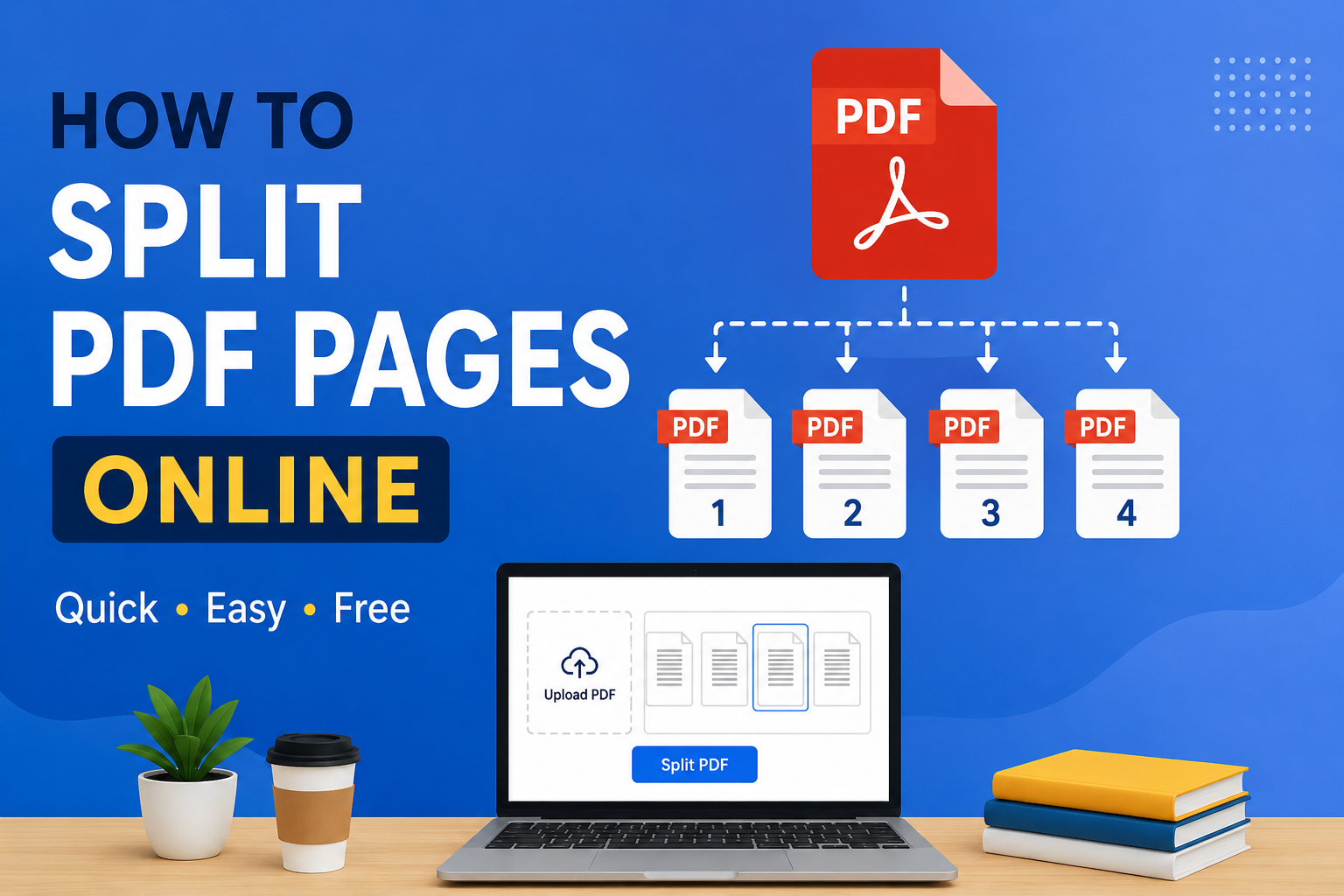
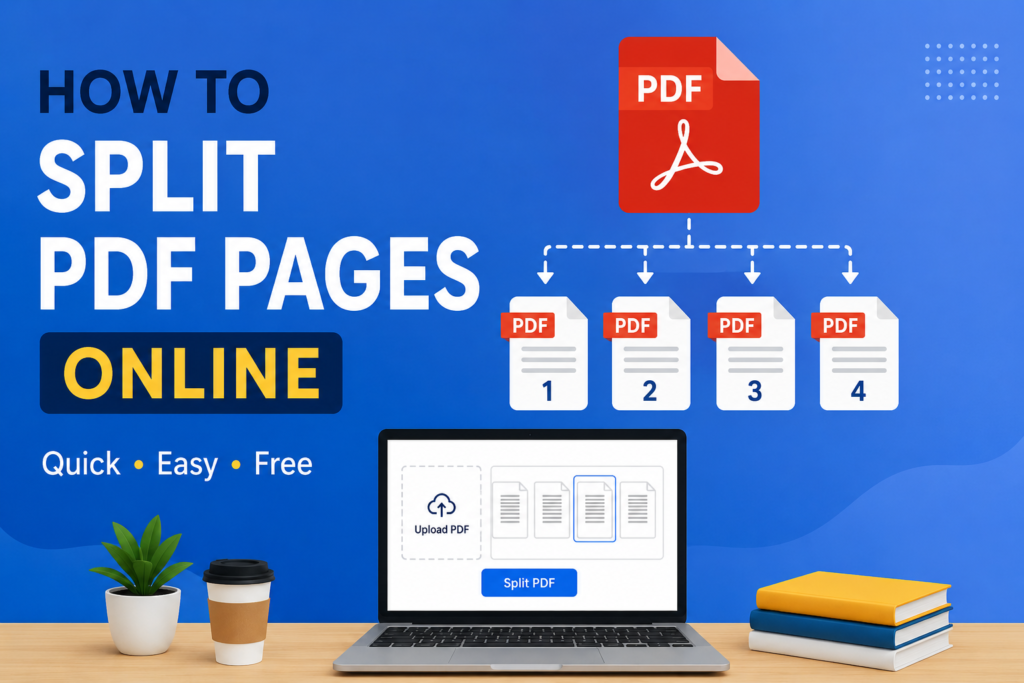
Splitting a PDF means taking one PDF document and separating it into smaller PDF files. For example, imagine you have a PDF containing 20 pages, but you only need pages 5, 6, and 7. Instead of sending the complete 20 page document, you can split those three pages into a separate PDF.
You can also divide a large PDF into several smaller documents. For example, a 50 page document could be separated into different sections based on its content.
I personally find this useful when I need to share only a specific part of a document. It keeps the files organized and makes them easier to send, store, and manage.
Why Would You Need to Split a PDF?
There are many situations where splitting a PDF can be helpful. Students may have a large textbook in PDF format but only need a particular chapter. Employees may receive a long report but need to send only a few pages to a colleague.
Another common situation is when someone has scanned several documents into one PDF. If those documents are meant to be stored separately, splitting the PDF can make organization much easier.
Splitting PDFs can also reduce the size of individual files. Smaller files are generally easier to upload and share through email or online platforms.
For me, the biggest advantage is convenience. Instead of working with one large document, I can create smaller files that contain exactly what I need.
How to Split PDF Pages Online
The process is generally simple and almost the same across most online PDF tools.
Open an Online PDF Splitter
First, open a reliable online PDF splitting tool in your web browser. You can search for a PDF splitter and choose a service that provides the features you need.
I recommend checking the website before uploading anything, especially if the PDF contains private or sensitive information. Look for information about file security, privacy, and how uploaded documents are handled.
Upload Your PDF File
Once you open the PDF splitter, you will normally see an option to upload or select a PDF file.
Click the upload button and choose the PDF from your computer or mobile device. Some services may also allow you to drag and drop the file directly into the browser window.
After uploading, the website will usually display the pages of your PDF as thumbnails or a list.
Select the Pages You Need
This is the most important part of the process. You need to decide which pages you want to separate.
For example, if your document has 15 pages and you only want pages 2, 4, and 8, select those pages. Some tools allow you to enter page numbers manually, while others let you click individual page thumbnails.
Certain services also provide options to split the document into equal sections. This can be useful when you want to divide a large PDF into several smaller files.
Choose the Splitting Option
Different online tools may provide different options. One common option is to extract selected pages. This creates a new PDF containing only the pages you selected.
Another option is to split the PDF into multiple files. For example, you might divide a 30 page document into three files containing 10 pages each.
Before clicking the final button, I always recommend checking the page selection carefully. Selecting the wrong page can result in a file that does not contain the information you wanted.
Split and Download the PDF
After selecting your pages and choosing the appropriate option, click the split or similar button.
The online tool will process the document. Depending on the size of the PDF and the service you are using, this can take a few seconds.
When the process is finished, you will usually receive an option to download the newly created PDF file or files.
I suggest opening the downloaded document immediately and checking it. Make sure the pages are correct and that the text, images, and formatting look normal.
Splitting Specific Pages From a PDF
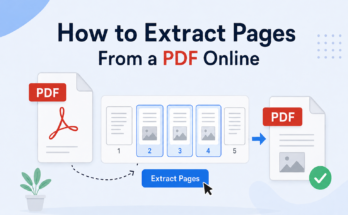
Sometimes you do not want to divide the entire document. You simply want to extract a few pages.
For example, suppose you have a 40 page school document and only need pages 12 through 16. Instead of splitting the entire file into many pieces, you can select pages 12 to 16 and create a new PDF.
This method saves time and gives you exactly the document you need.
Many online PDF tools make this process very easy because they show page previews. You can visually identify the pages before selecting them.
Splitting a PDF Into Multiple Files
Another useful option is dividing one PDF into multiple documents.
Suppose you have a 60 page report. You might want the first 20 pages in one file, the next 20 pages in another file, and the final 20 pages in a third file.
Some online PDF splitters allow you to define these page ranges. The tool then creates separate PDF files automatically.
I find this especially useful when dealing with large documents because it saves me from manually copying and creating files one page at a time.
Can You Split a PDF on a Phone?
Yes, you can usually split PDF files from a smartphone or tablet. Most online PDF tools work through a mobile browser, so you do not necessarily need a computer.
The basic process is the same. Open the website, upload the PDF from your device, select the pages, split the file, and download the result.
However, large PDF files can take longer to upload when using mobile data. If the document is large, I prefer using a stable WiFi connection.
Things to Check Before Uploading a PDF
Although online PDF tools are convenient, I believe it is important to think about privacy before uploading documents.
If your PDF contains personal information, financial details, passwords, private records, or confidential business information, check the service’s privacy policy before using it.
For ordinary documents such as public study materials or non confidential files, an online PDF splitter can be very convenient. For highly sensitive documents, you may prefer using software installed directly on your computer.
Another thing I check is whether the website has unnecessary popups or confusing download buttons. A trustworthy and simple interface usually makes the process easier.
What If the PDF Is Password Protected?
Some PDF files are protected with passwords or other restrictions. An online splitter may not be able to process such a document unless you have permission to access it.
If the PDF belongs to you and you know the password, you may need to unlock or open the document first, depending on the tool you are using.
I would not recommend trying to bypass security on a document that you do not have permission to access. Always make sure you have the right to modify the file.
Does Splitting a PDF Reduce Its Quality?
In most cases, splitting a PDF does not significantly reduce the quality of its pages. The pages are generally transferred into new PDF files rather than being converted into ordinary images.
However, the result can depend on the tool and the options you choose. If a website offers different processing or compression settings, pay attention to them.
After downloading the new PDF, open it and check the text and images. This simple step can help you make sure everything looks the way you expect.
Advantages of Splitting PDF Pages Online
The biggest advantage is convenience. You can work with a PDF directly from your browser without installing specialized software.
Another advantage is speed. For a normal sized document, the entire process can take only a few minutes.
Online tools can also work across different devices. Whether you are using Windows, macOS, Android, or another platform, you can often use the same type of web based tool.
The process is also beginner friendly. You generally only need to upload the file, select the pages, and download the result.
Common Mistakes to Avoid
One mistake I often see people make is selecting the wrong pages. Always double check the page numbers before splitting.
Another mistake is downloading the wrong file after processing. Some websites may display several buttons, so make sure you choose the actual PDF result rather than an unrelated advertisement.
It is also important not to upload sensitive documents to an unfamiliar website without checking its privacy practices.
Finally, always open the resulting PDF before sharing it. A quick check can help you catch missing pages or other problems.
Final Thoughts
Splitting PDF pages online is one of the simplest ways to manage large PDF documents. I personally find it useful whenever I need only a specific section of a file instead of the entire document.
The process is straightforward. You upload your PDF, select the pages you need, choose the splitting option, process the file, and download the new PDF. You can extract individual pages, create specific page ranges, or divide a large document into several smaller files.
The main thing I recommend is choosing a reliable online tool and paying attention to privacy, especially when dealing with personal or confidential information. It is also worth checking the final PDF before sharing it.
If you regularly work with PDFs for study, work, or personal projects, learning how to split PDF pages online can save time and make your documents much easier to organize. Once you try it a few times, the whole process becomes quick and simple.