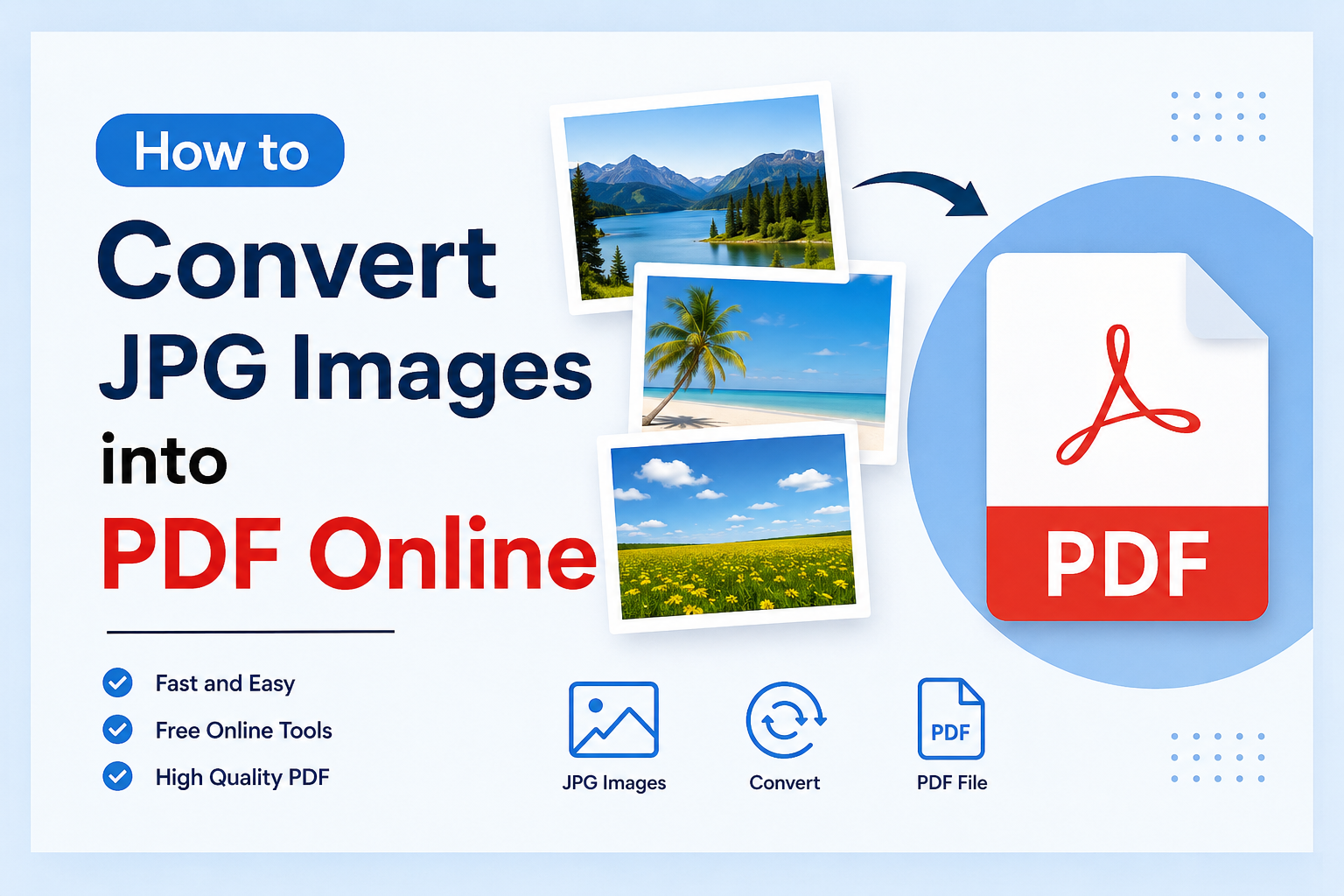
Converting JPG images into PDF is something I find useful in many everyday situations. Whether I have scanned documents, personal photos, school notes, receipts, forms, or several images that I want to keep together, saving them as a PDF makes everything easier to manage. A JPG image is great for viewing and sharing, but a PDF often looks more professional and is much easier to organize when I have multiple pages.
The good thing is that I do not need complicated software to convert JPG images into PDF. There are many online tools that can do the job in just a few clicks. I can upload my images, arrange them in the right order, convert them, and save the final PDF to my device.
In this article, I will explain how I convert JPG images into PDF online, what I look for in an online converter, and some useful tips that can help make the final PDF clear and organized.
Why Convert JPG Images Into PDF
Before talking about the process, I think it is useful to understand why converting images into PDF can be helpful.
JPG is one of the most common image formats. It is easy to open on phones, computers, and other devices. However, when I have several JPG images related to the same document, sending them separately can become inconvenient.
For example, if I have ten pictures of handwritten notes, I may not want to send ten separate files. Converting those images into one PDF allows me to keep everything together in a single document.
PDF files are also commonly accepted for school assignments, applications, business documents, forms, invoices, and other official work. A PDF can also preserve the arrangement of pages better than sending individual images.
For me, another advantage is organization. Instead of having many JPG files with different names, I can create one PDF with all the images arranged in the correct order.
Choose an Online JPG to PDF Converter
The first thing I need is an online JPG to PDF converter. There are many websites available, so I usually choose one that has a simple interface and does not make the process unnecessarily complicated.
A good online converter should allow me to upload one or several JPG images. It should also give me an option to arrange the images before creating the PDF.
I also pay attention to privacy. If I am converting personal documents, I prefer a service that clearly explains how uploaded files are handled and whether they are automatically removed after processing.
Another thing I consider is the quality of the output. Some tools may reduce image quality too much during conversion. If the PDF contains text, certificates, scanned pages, or important details, I want those details to remain easy to read.
Upload Your JPG Images
Once I select an online converter, I open the website and look for the JPG to PDF option. Most tools have a button such as Upload Files, Select Images, or Choose Files.
I click that button and select the JPG images from my computer or phone.
If I am working with multiple images, I select all the required files at once when the website supports multiple uploads. Some websites also allow me to drag and drop images directly into the browser.
One thing I recommend is checking the images before uploading them. If an image is blurry, upside down, or cropped incorrectly, converting it into PDF will not fix the original problem.
Arrange the Images in the Correct Order
This is one of the most important steps when I am creating a PDF from multiple JPG images.
After uploading the files, many online converters show thumbnails of the images. I can then move them around to arrange them in the order I want.
For example, if I have five scanned pages, I make sure page one comes first, followed by page two, page three, and so on.
I always check the order before converting because it is much easier to correct it at this stage than after downloading the finished PDF.
If the files have unclear names, I may rename them before uploading. Names such as Page 1, Page 2, and Page 3 can make the process easier when I am dealing with a large number of images.
Adjust Page Settings
Some online JPG to PDF tools provide additional settings. Depending on the converter, I may be able to select the page size, orientation, margins, or image placement.
If the JPG images are documents, I usually want them to fit properly on the PDF page without cutting off important information.
For normal documents, a standard page size can be useful. If my images are wider than they are tall, landscape orientation may look better. For tall images, portrait orientation is usually more suitable.
I also check whether the image is being stretched. Stretching can make an image look unusual or reduce its visual quality. A good converter should provide an option that keeps the original proportions.
Convert JPG to PDF
After checking the images and settings, I click the Convert, Create PDF, or similar button.
The website processes the images and creates a PDF file. The time required depends on the number and size of the JPG files and the speed of the internet connection.
For a few small images, the process can be very quick. If I am converting many large images, I may need to wait a little longer.
Once the conversion is complete, the website usually provides a button to download the PDF.
Download and Check the PDF
I never consider the job finished immediately after downloading the file. I first open the PDF and check every page.
I look at the page order, image quality, text readability, and overall appearance.
If the PDF contains scanned documents, I make sure the text is still clear enough to read. I also check the edges of the pages to make sure nothing important has been cut off.
If something does not look right, I go back to the original JPG files and try again with different settings or another converter.
This small check can prevent problems later, especially if I am submitting the PDF for school, work, or an official application.
How to Convert JPG to PDF on a Phone
I can also convert JPG images into PDF using a smartphone. The basic process is similar to using a computer.
First, I open an online JPG to PDF converter through my mobile browser. Then I select the images from my phone gallery.
After uploading them, I arrange the images in the correct order and choose any available page settings. Finally, I convert the images and download the PDF.
Some smartphones also have built in printing or document features that can save images as PDF files. The exact steps depend on the phone model and operating system.
For a quick task, I often find the online method convenient because I do not have to install another application.
How to Keep Good Image Quality
One concern I often have when converting JPG images into PDF is quality.
A PDF does not automatically make a low quality JPG look better. If the original image is blurry or heavily compressed, the final PDF may also look blurry.
To get better results, I start with the highest quality JPG available. I also avoid repeatedly editing and saving the same image because repeated compression can reduce image quality.
When using an online converter, I look for quality settings if they are available. If the tool offers different output quality options, I choose a setting that keeps the document readable without making the PDF unnecessarily large.
For scanned documents, good lighting and a clear original scan are also important.
How to Reduce the PDF File Size
Sometimes converting several JPG images into one PDF creates a large file. This can happen when the original images are high resolution.
If the PDF is too large to email or upload, I can use a PDF compression tool after conversion.
However, I try not to compress the file too aggressively. Excessive compression can make text and small details difficult to read.
I prefer finding a balance between file size and quality. If the PDF contains important documents, readability should be more important than having the smallest possible file.
Is It Safe to Convert JPG Images Online
Online converters are convenient, but I think privacy should always be considered.
I avoid uploading highly sensitive documents to websites that I do not trust. This is especially important for documents containing personal information, financial details, identification numbers, or private records.
Before using an online service, I check its privacy information and make sure I understand how uploaded files are handled.
For sensitive documents, using trusted desktop software or a built in device feature can sometimes be a better option because the files can remain on my own device.
Common Problems During JPG to PDF Conversion
Sometimes the conversion does not work exactly as expected.
One common problem is incorrect page order. I solve this by arranging the images carefully before conversion.
Another issue is poor image quality. In that situation, I check the original JPG and look for a higher quality version.
Images can also appear rotated incorrectly. I make sure every image has the correct orientation before creating the PDF.
A large PDF file is another common issue. If this happens, I reduce the image dimensions when appropriate or use a reliable PDF compression option.
Final Thoughts
Converting JPG images into PDF online is a simple task, and I find it especially useful when I need to combine several images into one organized document. The process usually involves uploading the JPG files, arranging them, checking the page settings, converting them, and downloading the finished PDF.
The most important thing for me is to check the final document before sharing it. I want to make sure every page is in the correct order, the images are clear, and no important information has been cropped.
Online JPG to PDF converters are convenient because they do not usually require complicated software or technical knowledge. With a reliable tool and a few simple checks, I can turn my JPG images into a clean and professional PDF in just a few minutes.
Whether I am preparing school notes, scanned documents, receipts, forms, or a collection of images, converting them into one PDF makes the files easier to store, share, and manage. Once I understand the basic process, it becomes one of those simple digital tasks that I can complete whenever I need it.