PDF files have become a normal part of my daily work. Whether I am reading study material, checking a business document, sharing a report, or saving important information, I often receive everything inside one large PDF file. The problem starts when I only need a few pages from that document. Sending the complete PDF when I only need two or three pages can be unnecessary and sometimes confusing.
This is where extracting pages from a PDF online becomes useful. Instead of keeping the entire document, I can select the pages I actually need and create a new PDF containing only those pages. The process is usually quick, simple, and does not require installing complicated software.
In this article, I will explain how I extract pages from a PDF online, what tools can be used, what things I check before uploading a document, and some useful tips that can make the whole process easier.
What Does Extracting Pages From a PDF Mean?
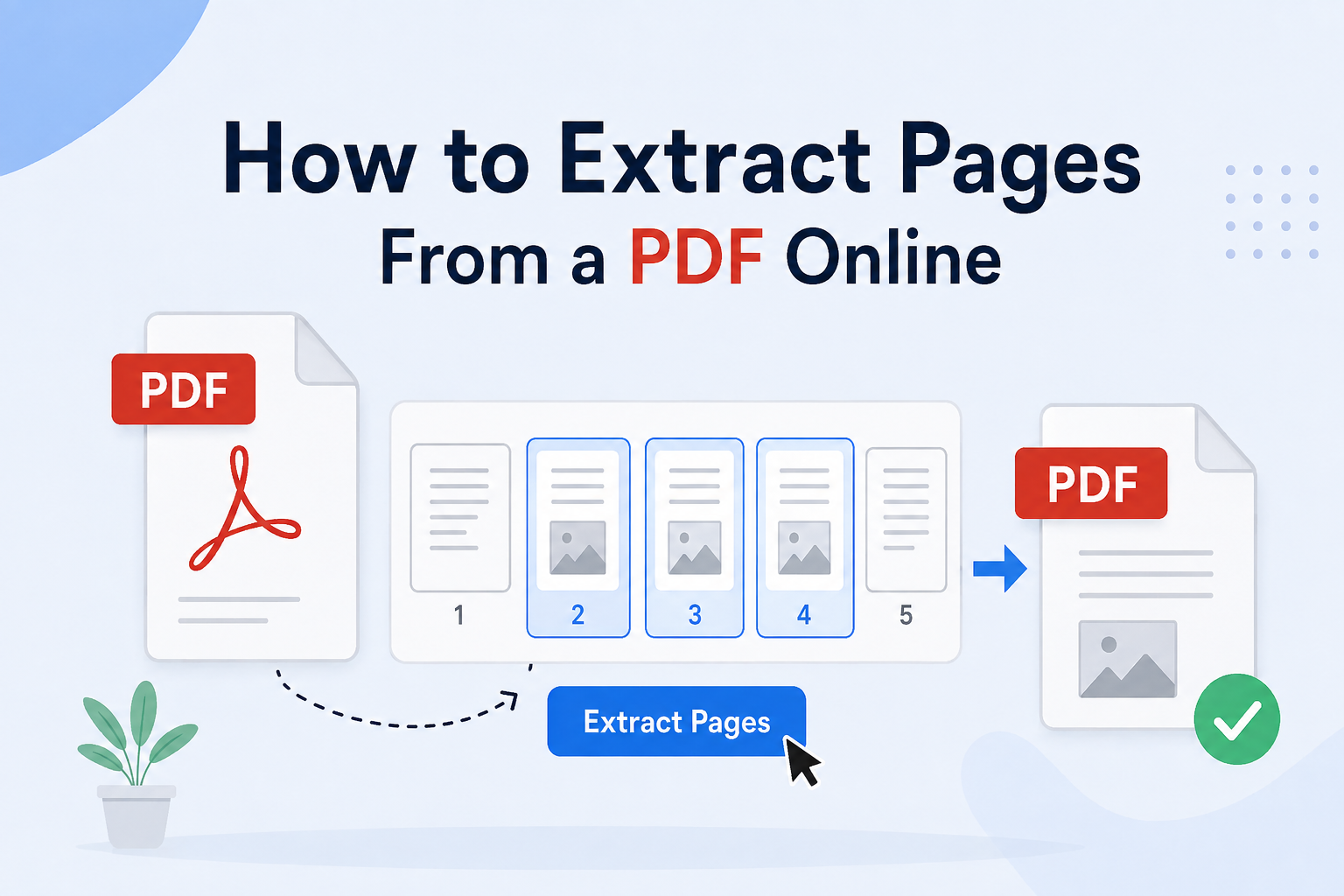
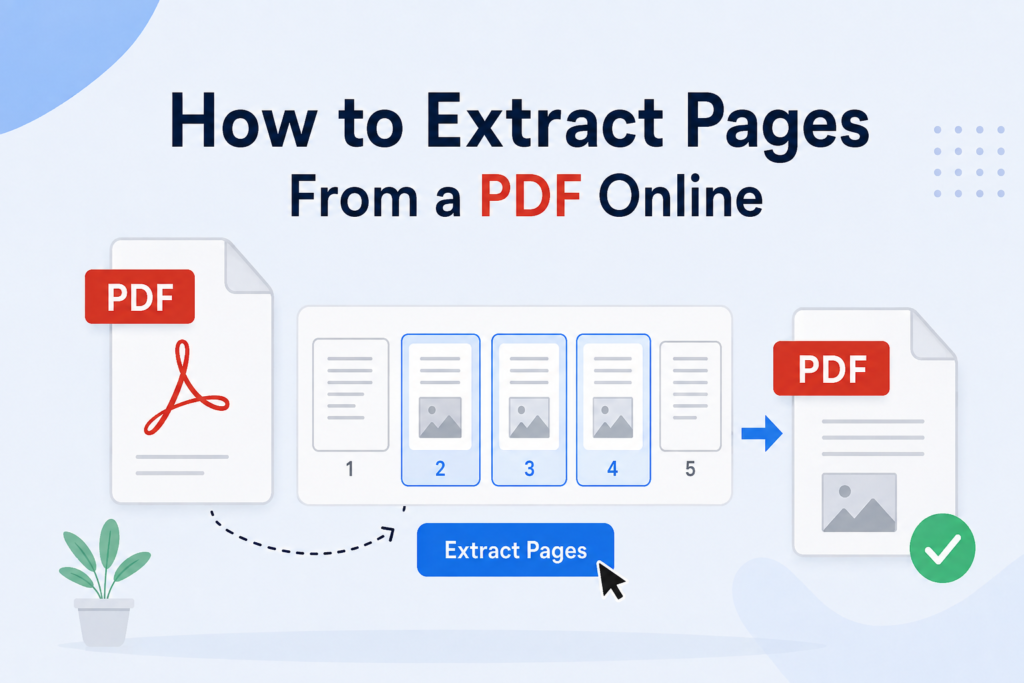
Extracting pages from a PDF means taking selected pages from an existing PDF and saving them as a separate PDF file. For example, suppose I have a PDF containing 50 pages, but I only need pages 8, 9, 10, and 11. Instead of sharing all 50 pages, I can extract those four pages and create a new file.
I find this especially useful when working with large documents. It keeps files organized and makes sharing much easier. The original PDF normally remains unchanged, while the selected pages are copied into a new document.
It is also different from simply deleting pages. When I extract pages, my main goal is usually to create a separate PDF containing the pages I want to keep.
Why I Prefer Online PDF Page Extraction
There are several reasons why I prefer using online tools for simple PDF tasks. The biggest advantage is convenience. I do not always have PDF editing software installed on every computer I use. With an online tool, I can usually open a browser, upload my document, select the required pages, and download the new PDF.
Another benefit is that most online PDF tools have a straightforward interface. I do not need to learn complicated editing features just to separate a few pages.
Online tools can also be useful when I am working from different devices. Whether I am using a laptop, desktop computer, or sometimes a tablet, I can access the tool through a browser.
However, I always think about privacy before uploading a document. If a PDF contains confidential information, personal details, passwords, financial information, or other sensitive material, I prefer using a trusted application or an offline PDF editor instead of uploading it to an unknown website.
How to Extract Pages From a PDF Online
The exact buttons can be different depending on the website, but the basic process is almost the same everywhere.
Step 1: Choose a PDF Extraction Tool
First, I open a reliable online PDF tool that provides a page extraction or PDF splitting feature. I look for a simple interface and clear instructions.
Some tools call the feature Extract PDF Pages, while others may call it Split PDF. The names can be different, but the purpose is often similar.
Before uploading anything important, I check the website’s privacy information and make sure I understand how uploaded files are handled.
Step 2: Upload the PDF
After opening the tool, I look for an upload button. It may say Upload PDF, Choose File, or something similar.
I select the PDF from my computer and wait for it to upload. The time depends on the size of the document and my internet connection.
If the file is very large, the upload can take longer. For this reason, I usually check the PDF size before starting the process.
Step 3: Select the Pages I Need
Once the PDF is uploaded, the tool normally displays page thumbnails or a list of page numbers.
This is the part where I carefully select the pages I want to extract. For example, if I need pages 4, 7, and 12, I select those specific pages.
Some tools allow me to enter page ranges. If I need pages 20 through 30, entering a range can be much faster than selecting every page individually.
I always double check my selection because selecting the wrong page can mean creating the file again.
Step 4: Extract or Split the Selected Pages
After selecting the pages, I look for an option such as Extract, Split, Create PDF, or similar wording.
When I click it, the online tool processes the document and creates a new PDF containing the selected pages.
The process normally takes only a short time, although large files may take longer.
Step 5: Download the New PDF
Once the new PDF has been created, I download it to my device.
I usually give the file a meaningful name instead of leaving it with a generic name. For example, if the original document is called Project Report, I might name the extracted file Project Report Selected Pages.
A clear file name makes it easier to find the document later.
How to Extract Multiple Page Ranges
Sometimes I do not need one continuous section. I may need several different pages from different parts of the same PDF.
For example, I might need pages 2, 3, 8, 15, and 16. Many online tools allow me to select individual pages and combine them into one new PDF.
This is particularly helpful when preparing documents for school, work, or presentations. Instead of sending a large document and asking someone to find the relevant information, I can create a smaller file containing only the useful pages.
Before downloading, I check the order of the pages. Some tools keep the original order automatically, while others may allow manual rearrangement.
Extracting Pages on a Phone
I can also extract PDF pages using a smartphone. Many online PDF tools work through mobile browsers, so I do not necessarily need a computer.
I open the PDF extraction website in my mobile browser, upload the document, select the required pages, and create the new PDF.
However, I find that working with a large PDF on a phone can sometimes be less convenient because the screen is smaller. If I need to select many pages, I usually prefer a computer.
It is also important to be careful when downloading files on a phone because they may be saved in a downloads folder that is not immediately obvious.
Things I Check Before Extracting Pages
There are a few things I always check before using an online PDF tool.
First, I check the document itself. I make sure I am working with the correct PDF and know which pages I need.
Second, I check the page numbers carefully. Sometimes the page number printed inside the document does not match the PDF viewer’s page number. A document may have a cover page that is counted as page one by the PDF but has no printed page number.
Third, I consider the privacy of the document. If it contains sensitive information, I avoid uploading it to websites that I do not trust.
Finally, I check the final PDF after downloading it. I open the file and make sure all the selected pages are there and appear correctly.
What If the PDF Is Password Protected?
Some PDF files are protected with passwords or restrictions. In such cases, an online extraction tool may not be able to process the document normally.
If I have permission to work with the file, I first use the appropriate password or authorized method to open it. I do not try to bypass protection on documents that I do not have permission to modify.
Once the document is accessible, the extraction process may work normally depending on the restrictions placed on the file.
Advantages of Extracting PDF Pages
For me, the biggest advantage is organization. A large PDF can contain hundreds of pages, while I may only need a small section.
Extracting pages creates a cleaner document that is easier to read and share.
It can also reduce file size. If the original PDF contains many pages, removing unnecessary pages from the copy can make the resulting file smaller.
Another advantage is convenience. If I am sending information to someone, I can send exactly what they need instead of making them search through a large document.
This can save time for both the sender and the receiver.
Common Mistakes to Avoid
One common mistake is selecting the wrong pages. I always check the selected page thumbnails before starting the extraction.
Another mistake is forgetting to open the final file. Even if the extraction appears successful, I still check the new PDF.
I also avoid uploading private documents to random websites. Not every online PDF service has the same privacy practices, so choosing a trustworthy service matters.
Another thing I avoid is overwriting the original PDF. I prefer creating a separate file so that the complete document remains available if I need it later.
When Should I Use an Offline Tool?
Online extraction is convenient, but it is not always the best choice.
If I am working with highly private documents, I prefer an offline PDF application when possible. This keeps the document on my own device rather than sending it to an online service.
Offline software can also be useful when I frequently work with PDFs. If PDF editing is part of my regular work, having a dedicated application can provide more features and flexibility.
For occasional simple tasks, however, an online tool can be much faster.
Final Thoughts
Extracting pages from a PDF online is one of those tasks that looks complicated at first but is actually quite simple. From my experience, the basic process is to choose a reliable tool, upload the PDF, select the pages I need, extract them, and download the new file.
I find this especially useful when dealing with long reports, study documents, manuals, presentations, and other files where I only need a small section. It saves time, keeps documents organized, and makes sharing information easier.
At the same time, I believe it is important to pay attention to privacy and security. I would not upload a sensitive document to an unfamiliar website just because the service is convenient. For private files, an offline solution can be a better choice.
For normal documents, though, online PDF extraction can be a quick and practical solution. Once I know how the process works, I can turn a large PDF into a smaller, more focused document in just a few minutes.