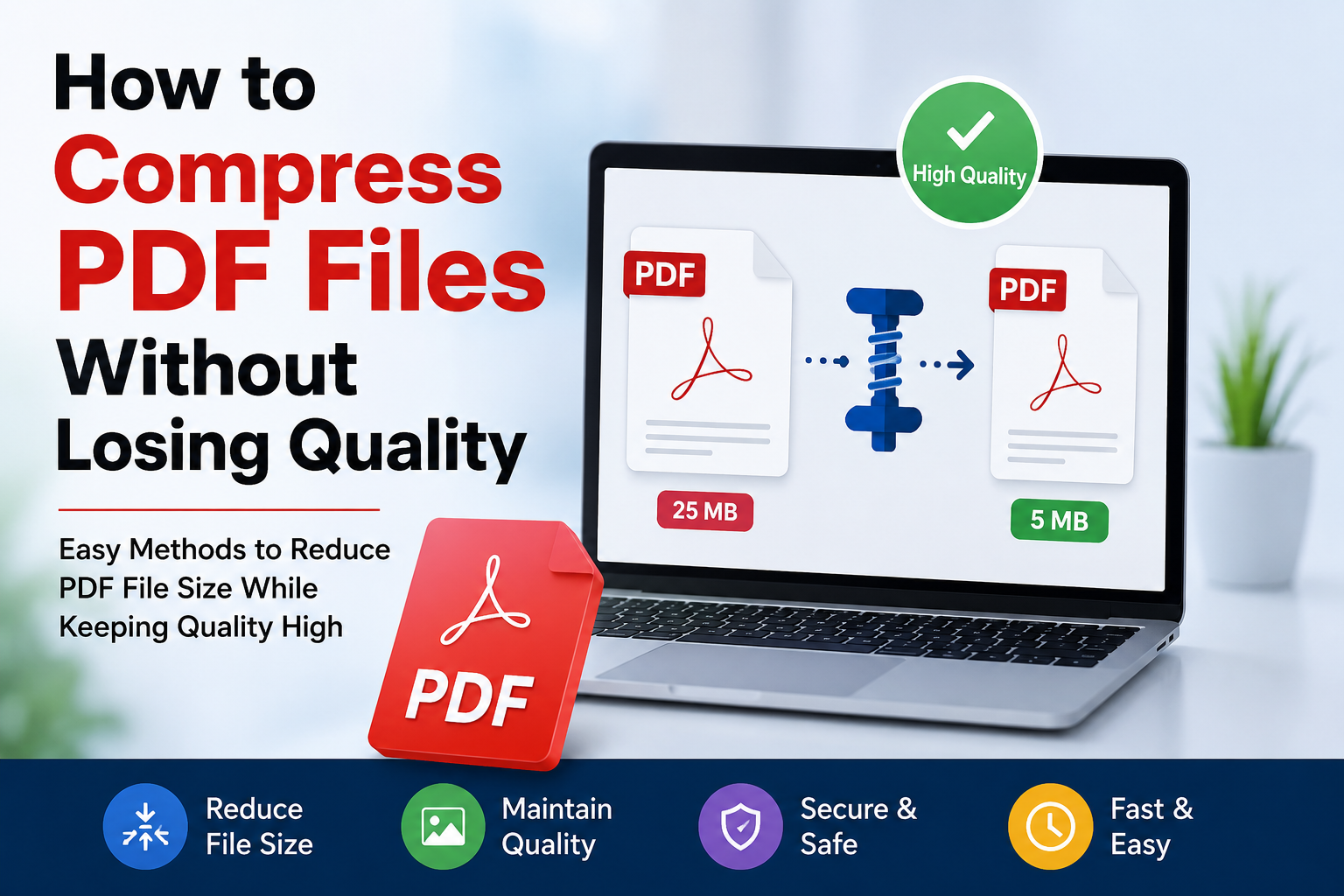
PDF files have become a normal part of my daily digital life. I use them for documents, assignments, forms, reports, presentations, and many other types of files. The only problem I often face is that some PDF files become quite large, especially when they contain high resolution images, scanned pages, or graphics. A large PDF can be difficult to upload, send through email, or share on a website.
This is where PDF compression becomes useful. In my experience, compressing a PDF does not always mean making it look blurry or reducing its readability. With the right method, it is possible to reduce the file size while keeping the document clear and professional. In this article, I will explain how to compress PDF files without losing quality and share some practical tips that I personally find useful.
What Does PDF Compression Mean?
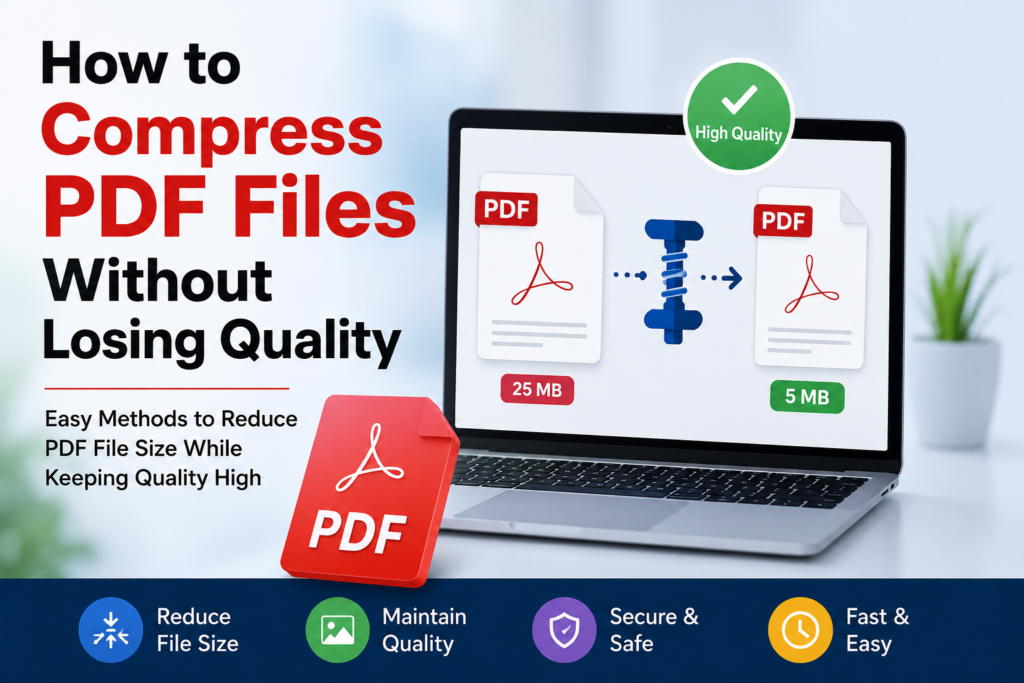
PDF compression means reducing the file size of a PDF without unnecessarily removing important information. A PDF can contain text, images, fonts, graphics, links, and other elements. Some of these elements can take up a lot of storage space.
When we compress a PDF, unnecessary data can be removed or stored more efficiently. For example, a PDF containing several large images may be reduced significantly by optimizing those images.
There are different levels of compression. Some methods focus on maximum file size reduction, while others focus on keeping the original quality. If quality is important, I always prefer a balanced compression option rather than choosing the strongest compression available.
Why Should You Compress a PDF?
There are several reasons why I think PDF compression is useful. The first reason is easier sharing. Large PDF files can sometimes be difficult to send through email or messaging platforms because many services have file size limits.
Another benefit is faster uploading. If you regularly upload documents to websites, reducing the file size can make the process quicker. Smaller files also take less storage space on your computer, phone, or cloud storage.
Compressed PDFs can also be more convenient for websites. If a PDF is available for visitors to download, a smaller file can make the download process easier, especially for people with slower internet connections.
For me, the main goal is not simply to make the PDF smaller. I want to make it smaller while keeping the text sharp and the important images clear.
Check the PDF Before Compressing It
Before compressing a PDF, I recommend checking what is actually making the file large. Sometimes a PDF may be large because it contains many high resolution photographs. In other cases, scanned pages may be responsible for most of the file size.
You can check the file size by viewing the PDF properties on your computer. It is also a good idea to open the document and check its pages before compression. This gives you something to compare with the compressed version later.
I usually look at the text, images, page layout, and overall readability before making any changes. This simple step helps me notice whether the quality has changed after compression.
Use a Reliable Online PDF Compressor
One of the easiest methods is using an online PDF compression tool. These tools are useful because you do not always need to install additional software.
The general process is simple. You upload your PDF, choose a compression level, and allow the tool to process the document. After compression, you can download the smaller PDF.
When quality matters, I recommend looking for a tool that provides different compression levels. A basic or medium compression setting is usually a better choice than the strongest setting.
Before uploading an important document, I also consider privacy. If the PDF contains private information, personal details, financial information, or confidential work, I prefer using trusted software or an offline method instead of uploading the file to an unknown website.
Choose the Right Compression Level
One of the biggest mistakes people make is choosing maximum compression without checking the result. Maximum compression can reduce the file size considerably, but it may also affect image quality.
If your PDF contains mostly text, stronger compression may work well because text usually remains easy to read. However, image heavy documents require more care.
I normally start with a moderate compression setting. After that, I compare the new file with the original. If the quality still looks good, I keep the compressed version. If the images or text have become unclear, I try a less aggressive setting.
This approach gives me better control over the final result.
Compress Images Inside the PDF
Images are often one of the main reasons a PDF becomes large. A document containing several photographs can quickly reach a large file size.
If the original images are extremely high resolution, they may contain more detail than is necessary for a normal PDF. Reducing unnecessary image data can make a significant difference.
However, I would not recommend reducing image quality too much. For documents that contain charts, diagrams, screenshots, or photographs, it is important to keep enough detail so that the content remains understandable.
For a document that will mainly be viewed on a computer or phone, extremely high image resolution is often unnecessary. A sensible image resolution can help reduce the file size while keeping the document visually clear.
Remove Unnecessary Elements
Another way to reduce PDF size is to remove unnecessary elements. Some PDFs contain hidden information, unused objects, duplicate resources, or other data that is not required for normal viewing.
Professional PDF optimization tools can sometimes identify and remove these unnecessary elements automatically.
I find this method particularly useful when the document was created from a complicated design program. Such files can contain additional information that increases the size without providing much benefit to the person reading the PDF.
Use PDF Optimization Software
If you frequently work with PDF documents, desktop PDF software can be a good option. Many PDF applications provide optimization or reduced file size features.
The advantage of desktop software is that you can work with files directly on your computer. This can be useful when privacy is important.
Some applications allow you to control image quality, font settings, embedded resources, and other parts of the PDF. These options give you more control than a simple one click compressor.
For occasional users, an online tool may be enough. For people who work with PDFs regularly, dedicated software can provide more flexibility.
Avoid Repeated Compression
I think one of the most important tips is to avoid compressing the same PDF again and again. Repeated compression can sometimes affect image quality, particularly when the process involves reducing image data each time.
Instead, I recommend keeping the original PDF safely stored. Create a compressed copy from the original whenever you need a smaller version.
This gives you a clean backup and allows you to try different compression settings without permanently changing your original document.
Keep a Backup of the Original PDF
Before making any changes, I always recommend keeping the original file. This is especially important for important documents.
If the compressed version does not look good, you can return to the original and try a different method. Without the original, you may not be able to restore the previous quality.
I also recommend giving files clear names. For example, you could keep the original document and create a separate compressed copy. This makes it easier to know which file is which.
Check the Compressed PDF Carefully
After compression, do not immediately delete the original. First open the compressed PDF and check every important part.
Look at the text and make sure it is still sharp and readable. Check images, charts, tables, logos, and other visual elements. I also recommend checking several pages rather than looking only at the first page.
If everything looks good and the file size has been reduced enough, the compressed PDF is ready to use.
If something looks blurry or damaged, try a lighter compression setting. A slightly larger file is often worth it if the document remains much clearer.
Compressing Scanned PDFs
Scanned PDFs can be especially large because every page may essentially be an image. If a document contains dozens of scanned pages, the file size can become quite large.
For scanned documents, image optimization is usually more important than text compression. However, you should be careful because excessive compression can make scanned text difficult to read.
If the document is intended for reading on a screen, moderate image optimization can often provide a good balance between size and quality.
For documents that need to be printed, I would use more conservative compression because print quality may require more detail.
Choose the Right Format Before Creating the PDF
Sometimes the best way to reduce a PDF size is to think about the document before creating it. If you are creating a PDF from a Word document, presentation, or image editor, avoid inserting unnecessarily large images.
For example, if an image is much larger than the space where it will appear, resizing it before creating the PDF can help keep the final file smaller.
I personally find this approach useful because preventing unnecessary file size is easier than trying to reduce it later.
Final Thoughts
Compressing a PDF without losing quality is mainly about finding the right balance. The goal should not always be the smallest possible file. Instead, I believe the better goal is a smaller file that still looks clear, professional, and easy to read.
I usually start by checking what is making the PDF large, then choose a moderate compression method. If images are responsible for most of the size, I focus on optimizing them without making them blurry. I also keep the original file and carefully check the compressed version before using it.
Whether you are preparing an assignment, sharing a report, uploading documents to a website, or simply trying to save storage space, PDF compression can make your files much easier to manage. With the right settings and a little attention to quality, you can significantly reduce PDF file size while keeping the document looking almost the same as the original.