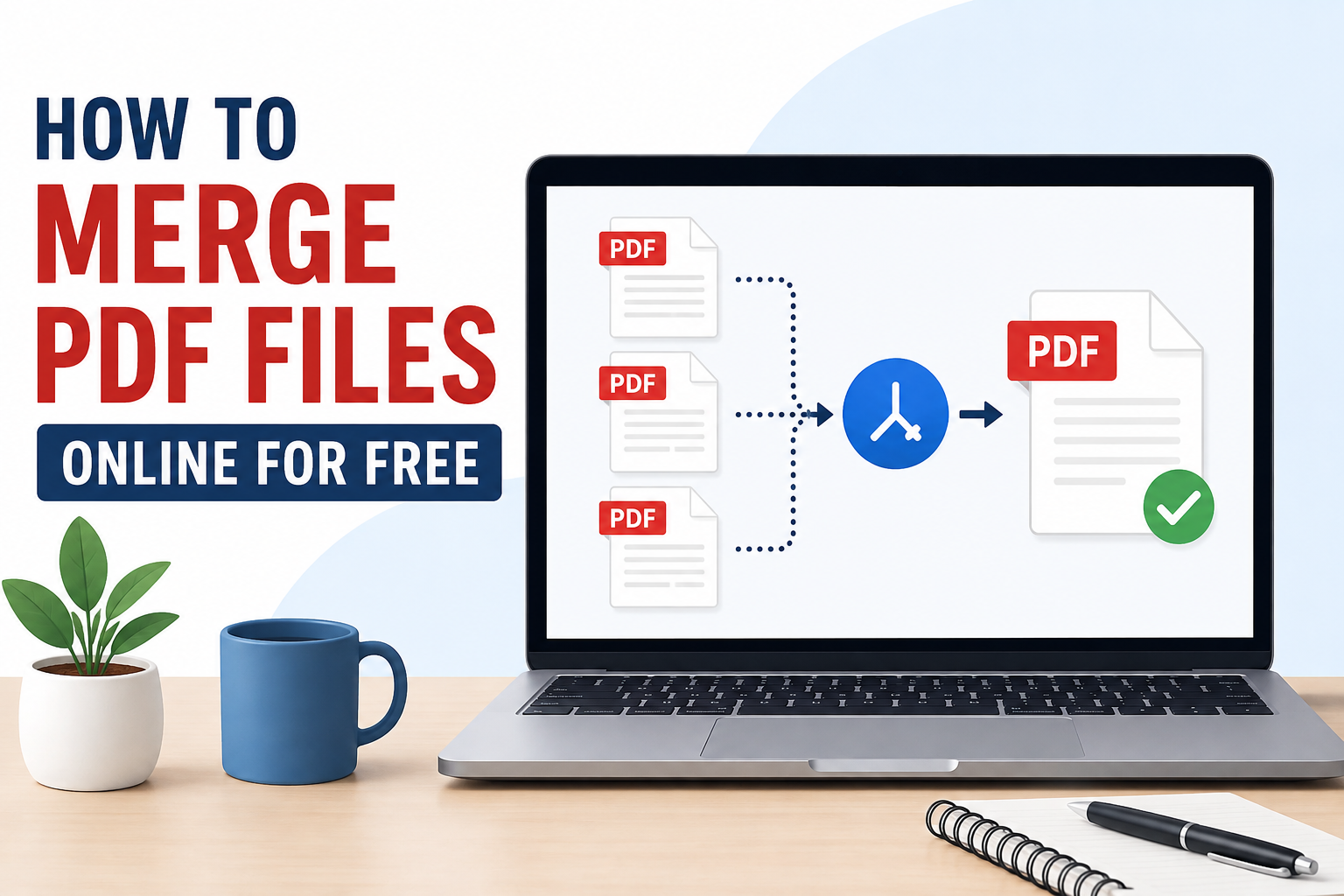
PDF files have become a normal part of my daily digital work. Whether I am dealing with study notes, assignments, reports, forms, receipts, or business documents, I often end up with several PDF files that belong together. Keeping all of them separately can become confusing, especially when I need to send or upload them somewhere. This is why I find merging PDF files so useful.
The good thing is that I do not always need expensive software to combine PDFs. There are several free online tools that allow me to merge multiple PDF files into one document within a few minutes. In this article, I will explain how I merge PDF files online for free, what I check before combining them, and some useful tips that can make the process easier.
What Does Merging PDF Files Mean?
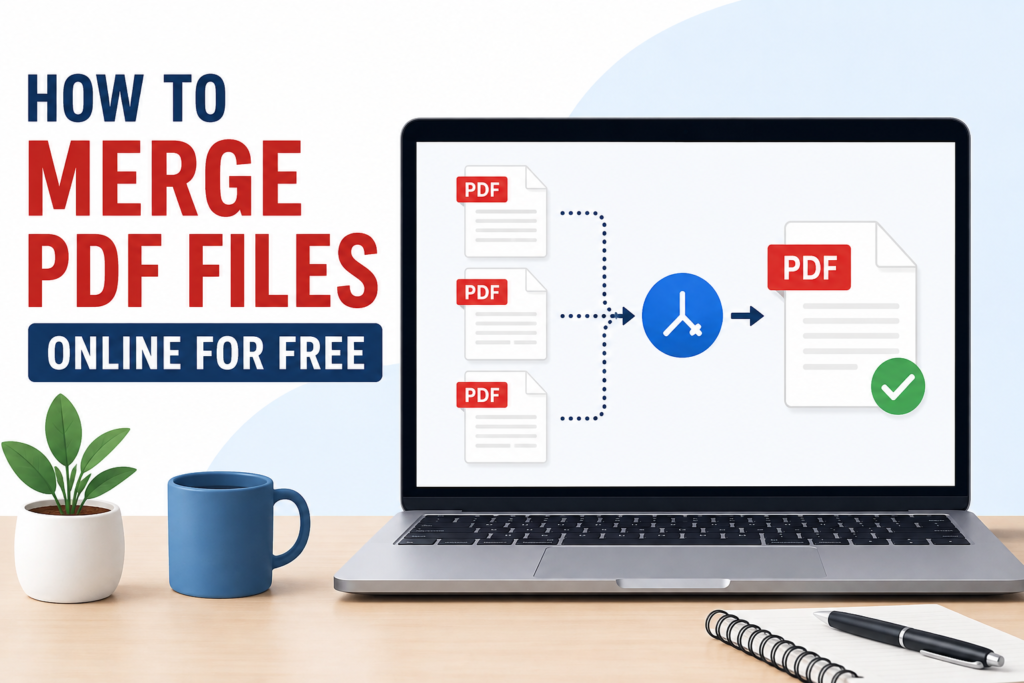
Merging PDF files simply means combining two or more separate PDF documents into one PDF file. For example, if I have one PDF containing a cover page, another containing my assignment, and another containing references, I can merge all three into a single document.
Instead of sending several attachments, I can send one organized PDF. This is especially helpful when submitting school or college assignments, preparing reports, sharing documents with colleagues, or keeping personal records organized.
The original PDF files usually remain unchanged. The online tool creates a new combined PDF based on the files I select.
Why I Prefer Merging PDFs Online
One of the main reasons I prefer online PDF merging tools is convenience. I do not need to install a large program on my computer. I can open a browser, upload my files, arrange them in the correct order, and download the combined document.
Another advantage is that many online services have simple interfaces. Even if someone has never worked with PDF software before, the process is usually easy to understand.
Online tools can also be useful when I am working from different devices. If I am using a computer that does not have PDF editing software installed, I can still merge documents through a browser.
However, I always pay attention to privacy before uploading sensitive documents. For private documents containing personal information, I prefer using a trusted service or an offline PDF application.
How to Merge PDF Files Online for Free
The basic process is similar across most free PDF merging websites. Here is the method I normally follow.
Step 1: Prepare Your PDF Files
Before opening an online PDF merging tool, I first collect all the PDF files that I want to combine.
I also check the names of the files and make sure I know the order in which they should appear. This saves time later because the order of pages matters.
For example, if I am combining an assignment, I might want the files arranged like this:
Cover page
Introduction
Main content
References
Conclusion
The exact order depends on the purpose of the document.
Step 2: Choose a Free Online PDF Merger
The next step is to find a reliable online PDF merging service. Many websites offer this feature for free, although some may have limits on file size, the number of files, or daily usage.
When I choose a website, I look for a clean interface and clear instructions. I also check whether the website uses a secure connection and whether it explains how uploaded files are handled.
I avoid uploading highly sensitive documents to an unfamiliar website just because it offers a free service.
Step 3: Upload the PDF Files
After opening the PDF merger, I look for an option such as Upload Files, Choose Files, or Select PDF Files.
I then select the PDFs from my computer. Some websites also allow me to drag and drop files directly into the browser window.
If I have several documents, I upload all of them before starting the merging process.
Step 4: Arrange the Files
This is one of the most important steps for me.
After uploading the files, most online PDF tools show them as separate items. I can usually drag them into the correct order.
I carefully check the sequence before merging. If the files are arranged incorrectly, the final PDF will also have the wrong order.
For an assignment, for example, I would not want the references to appear before the main content.
Step 5: Merge the PDFs
Once I am satisfied with the order, I click the Merge, Combine, or similar button.
The website processes the files and creates a new PDF containing all the selected documents.
The time required depends on the number and size of the files and the speed of my internet connection.
Step 6: Download the Combined PDF
After the merging process finishes, the website normally provides a download option.
I download the new PDF and save it in a suitable folder. I usually give it a clear name, such as Final Assignment.pdf or Combined Documents.pdf.
I also open the new file before sending it anywhere. This lets me make sure that all pages are present and in the correct order.
How to Make Sure the PDF Is Correct
Merging the files is only part of the job. I always recommend checking the final document carefully.
First, I confirm that every expected PDF has been included. Then I check the page order.
I also look through the document to make sure that the text, images, tables, and formatting appear correctly.
Sometimes different PDF files can have different page sizes or orientations. One document might be portrait while another is landscape. This does not always cause a problem, but it is worth checking.
I also check the total number of pages. If I know that my original files contained 25 pages in total, the merged document should normally contain approximately the same number unless some pages were intentionally removed or altered.
Can I Merge PDFs on a Phone?
Yes, in many cases I can merge PDFs using a smartphone.
I can open a PDF merging website through a mobile browser and upload files stored on my phone. Some services also provide mobile applications.
The process is generally similar to using a computer. I select the files, arrange their order, merge them, and save the resulting PDF.
However, I find working with many large files easier on a computer because selecting and organizing documents is usually more convenient on a larger screen.
What If My PDFs Are Very Large?
Large PDF files can take longer to upload and process. Some free online tools also place limits on file size.
If I have very large documents, I first check whether the website supports them. If it does not, I may need to compress the PDFs before merging them or use desktop software.
I avoid repeatedly uploading huge files if my internet connection is slow because the process can consume a lot of time and data.
Privacy and Security Tips
Privacy is something I take seriously when using online PDF tools.
Before uploading a document, I consider whether it contains private information such as identification details, financial information, passwords, personal records, or confidential work.
For ordinary documents that do not contain sensitive information, an established online service may be convenient. For highly confidential documents, I would rather use trusted offline software when possible.
I also make sure that I am using the correct website. There are many similar looking PDF websites online, so I pay attention to the domain name and avoid suspicious pages.
After downloading the merged file, I also make sure I am saving it in a secure location.
Common Problems When Merging PDFs
Sometimes the process does not work perfectly. One common issue is an incorrect file order. This can usually be fixed by rearranging the uploaded documents before merging.
Another problem can be a file that is damaged or not a valid PDF. If the tool cannot process one document, I check whether that particular file opens normally on my computer.
File size can also cause problems. If the website has a maximum upload limit, I may need to reduce the size of the files first.
Internet problems can interrupt the upload or merging process as well. In that situation, I usually try again after checking my connection.
Benefits of Having One Combined PDF
I find a single PDF much easier to manage than many separate files.
It is easier to send through email because I only need to attach one document. It can also make document submission more professional because everything is contained in one organized file.
A combined PDF is also easier to store. Instead of searching through several files later, I can open one document and find everything in one place.
For students, this can be particularly useful when submitting assignments, projects, research material, or application documents.
My Simple Approach to PDF Merging
When I need to merge PDFs, I try to keep the process simple. First, I organize the files. Then I choose a reliable online tool, upload the documents, arrange their order, and merge them.
After downloading the final file, I always open it and check the pages before sharing it.
I have found that this small final check can prevent unnecessary problems. It takes only a minute or two and gives me confidence that the document is ready.
Final Thoughts
Merging PDF files online for free is one of the easiest ways to organize multiple documents into a single file. I find it especially useful when I need to submit assignments, prepare reports, combine notes, or share several related documents with someone.
The basic process is straightforward. I collect my PDFs, choose a trustworthy online merger, upload the files, arrange them in the correct order, merge them, and download the finished document.
The most important thing is to check the final PDF before using it and to think carefully about privacy when uploading documents online. For ordinary files, free online PDF tools can save a lot of time and effort. For confidential documents, an offline solution may be a better choice.
Once I understand these simple steps, merging PDFs becomes a quick task rather than something complicated. It is a useful digital skill that can make document management much easier.