When I write an article, email, assignment, social media post, or any other type of text, I always want it to look clean and easy to read. One small problem that can make text look messy is extra spaces. Sometimes I accidentally press the spacebar more than once, copy text from a website, or paste content from a document that contains unusual spacing. The result can be text with too many spaces between words, sentences, or lines.
Removing these extra spaces manually can take a lot of time, especially when the text is long. This is where an online extra space remover can be very useful. Instead of checking every sentence myself, I can simply paste my text into an online tool and clean it within a few seconds.
In this article, I will explain how to remove extra spaces from text online, why extra spaces appear, and why cleaning them can make written content much better.
What Are Extra Spaces in Text?
Extra spaces are unnecessary blank spaces that appear in text. Normally, there should be one space between two words. However, sometimes there may be two, three, or even more spaces between words.
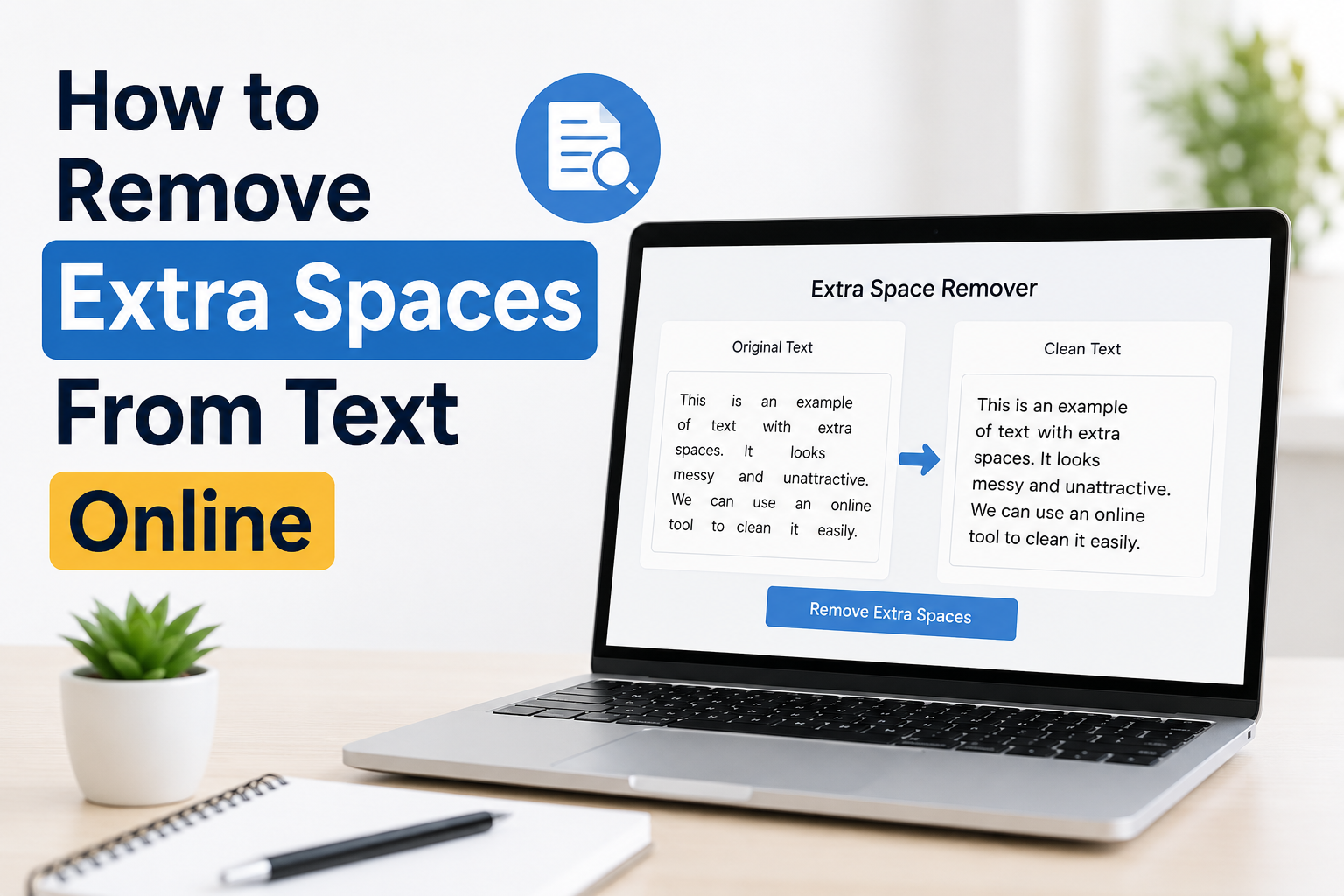
For example, normal text looks like this:
I enjoy writing useful articles for my website.
Text with extra spaces may look like this:
I enjoy writing useful articles for my website.
The second example is harder to read and does not look professional. Extra spaces can also appear at the beginning or end of a paragraph. Sometimes they are not easy to notice because they are hidden inside the text.
For me, cleaning these spaces is a simple step that can make a big difference in the appearance of my content.
Why Do Extra Spaces Appear?
There are many reasons why unwanted spaces can appear. One of the most common reasons is simply typing too quickly. When I am writing, I may accidentally press the spacebar twice without noticing.
Copying and pasting text is another common reason. Text copied from websites, PDF files, word processors, emails, and other applications may contain unnecessary spaces. Formatting can sometimes change when text is transferred from one place to another.
Another reason is converting documents between different formats. When I copy text from a PDF or an old document, the spacing may not remain exactly the same.
Extra spaces can also appear when several people edit the same document. One person may use normal spacing while another person may accidentally add additional spaces.
Fortunately, I do not need to find every unwanted space manually. An online tool can usually handle the cleaning process automatically.
What Is an Online Extra Space Remover?
An online extra space remover is a simple web based tool that cleans unnecessary spaces from text. Most of these tools work in a very straightforward way.
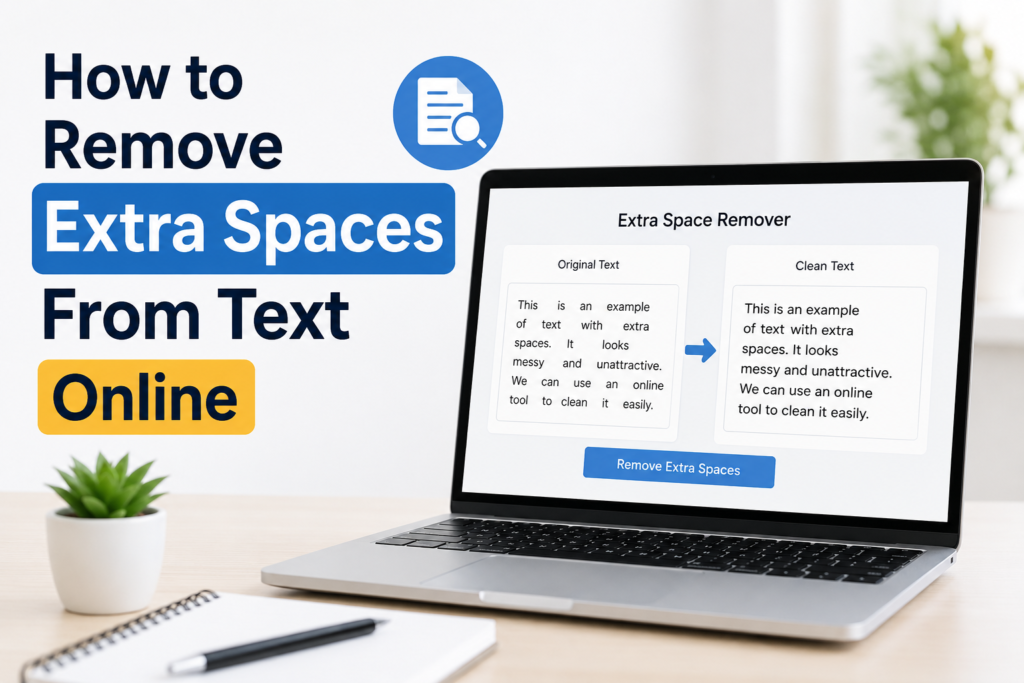
I usually copy my text, open the tool, paste the content into the text box, and choose the option to remove extra spaces. The tool then processes the text and gives me a cleaner version.
Depending on the tool, it may remove multiple spaces between words, unnecessary spaces at the beginning and end of lines, and other unwanted spacing problems.
The biggest advantage is convenience. I do not have to install software or learn complicated editing techniques.
How to Remove Extra Spaces From Text Online
The process is usually very easy, even for someone who does not have technical knowledge.
Step 1: Prepare Your Text
First, I prepare the text that I want to clean. It could be an article, assignment, email, notes, product description, or any other written content.
I make sure I have the complete text ready before opening the online tool.
Step 2: Find an Extra Space Remover
Next, I open a reliable online extra space remover. There are many tools available, and most have a simple interface.
I prefer tools that allow me to paste text directly and process it without unnecessary complications.
Step 3: Paste Your Text
After opening the tool, I copy my text and paste it into the provided text box.
At this stage, I can usually see the original text with all of its formatting and spacing.
Step 4: Remove the Extra Spaces
Now I use the tool’s cleaning option. The tool scans the text and removes unnecessary spaces.
In most cases, multiple spaces between words are changed into a single normal space. Unwanted spaces around the text may also be removed.
Step 5: Copy the Clean Text
After the tool finishes processing the text, I check the result. If everything looks correct, I copy the cleaned version.
I can then paste it into WordPress, Microsoft Word, Google Docs, an email, or wherever I need it.
Why Should I Remove Extra Spaces?
There are several good reasons to clean unnecessary spaces from text.
The first reason is readability. Clean spacing makes it easier for people to read sentences without distractions. When words have random spaces between them, the content can look poorly edited.
The second reason is professionalism. Whether I am writing an article, business message, application, or assignment, I want the final text to look polished. Small formatting problems can affect the overall impression of my writing.
Another reason is consistency. When all paragraphs use similar spacing, the entire document looks more organized.
I also find extra space removal useful when preparing content for websites. Clean text is easier to manage and edit inside a content management system.
Removing Extra Spaces From Long Articles
When working with a short paragraph, removing spaces manually may not be difficult. However, doing the same thing with a long article can become frustrating.
Imagine writing an article containing several thousand words and discovering that many sentences have multiple spaces. Checking every sentence manually could take a significant amount of time.
This is where online tools become especially useful. Instead of searching through the entire article, I can paste the complete content into the tool and clean it quickly.
Afterward, I still recommend reading the text once. An automatic tool can clean spacing, but I should always make sure the content itself has not changed in an unwanted way.
Extra Spaces After Sentences
Sometimes people accidentally add several spaces after a full stop. For example, a sentence may end with a full stop followed by three spaces before the next sentence begins.
Normally, only one space is needed.
For example:
I like writing articles. I also enjoy learning new things.
A cleaner version is:
I like writing articles. I also enjoy learning new things.
An extra space remover can usually correct this type of problem automatically.
Extra Spaces at the Beginning and End
Another common issue is unnecessary space before or after text.
For example, a paragraph might begin with blank spaces before the first word. There may also be spaces after the final word in a paragraph.
These spaces may not be visible immediately, but they can still create formatting problems when the content is copied into another application.
Cleaning these spaces helps keep the text neat and consistent.
Can I Remove Extra Spaces Without an Online Tool?
Yes, it is possible to remove extra spaces manually or with software such as a word processor. Many applications also provide search and replace functions that can be used to replace multiple spaces with a single space.
However, I personally find an online tool more convenient when I want to quickly clean a piece of text.
For a small amount of content, manual editing may be enough. For longer content, an automatic tool can save considerable time.
Things to Check After Removing Spaces
Although online tools are useful, I never assume that the job is finished immediately after clicking the cleaning button.
I always check the cleaned text before using it. This is especially important when the original text contains special formatting, tables, code, addresses, or other information where spaces may have a purpose.
Some text contains intentional spacing. For example, certain programming code or formatted documents may require specific spaces. In such cases, I would be more careful before using an automatic cleaning tool.
For normal articles, assignments, emails, and general writing, however, removing unnecessary spaces is usually straightforward.
How Extra Space Removal Helps Bloggers
As someone interested in online content, I think small formatting details are worth paying attention to. Readers may not consciously notice every spacing problem, but poorly formatted text can make an article feel less polished.
When I publish content on a website, I want readers to focus on the information rather than formatting mistakes.
Clean spacing also makes editing easier. When paragraphs are properly formatted, I can quickly identify sentences, headings, and sections that need improvement.
This can make the entire content creation process smoother.
How Students Can Use an Extra Space Remover
Students can also benefit from these tools. Assignments are often created by combining notes, copied information, and personal writing. As a result, the final document may contain inconsistent spacing.
Before submitting an assignment, I can copy the text into an extra space remover and clean unnecessary spaces. After that, I can paste the text back into my document and check the formatting.
This is a simple way to make an assignment look more organized.
How Writers Can Save Time
For writers, time is important. I would rather spend my time improving ideas, researching useful information, and making an article interesting than manually deleting hundreds of unwanted spaces.
An online extra space remover can take care of this repetitive task quickly.
It is not a replacement for proofreading, though. I still believe that every article should be read carefully before publication. Spacing is only one part of good writing.
Final Thoughts
Removing extra spaces from text online is one of the simplest ways to improve the appearance of written content. Whether I am working on a blog article, school assignment, email, notes, or website content, unnecessary spaces can make the text look untidy.
The process is simple. I copy my text, paste it into an online extra space remover, process the content, and copy the cleaned version. After that, I check the text to make sure everything still looks correct.
In my opinion, small formatting improvements can make a noticeable difference. Good writing is not only about choosing the right words. It is also about presenting those words in a clean and readable way.
If I am preparing content for publication, I always try to remove unnecessary spaces and other simple formatting problems before the final version goes live. It takes very little time, but it helps create a more professional reading experience.