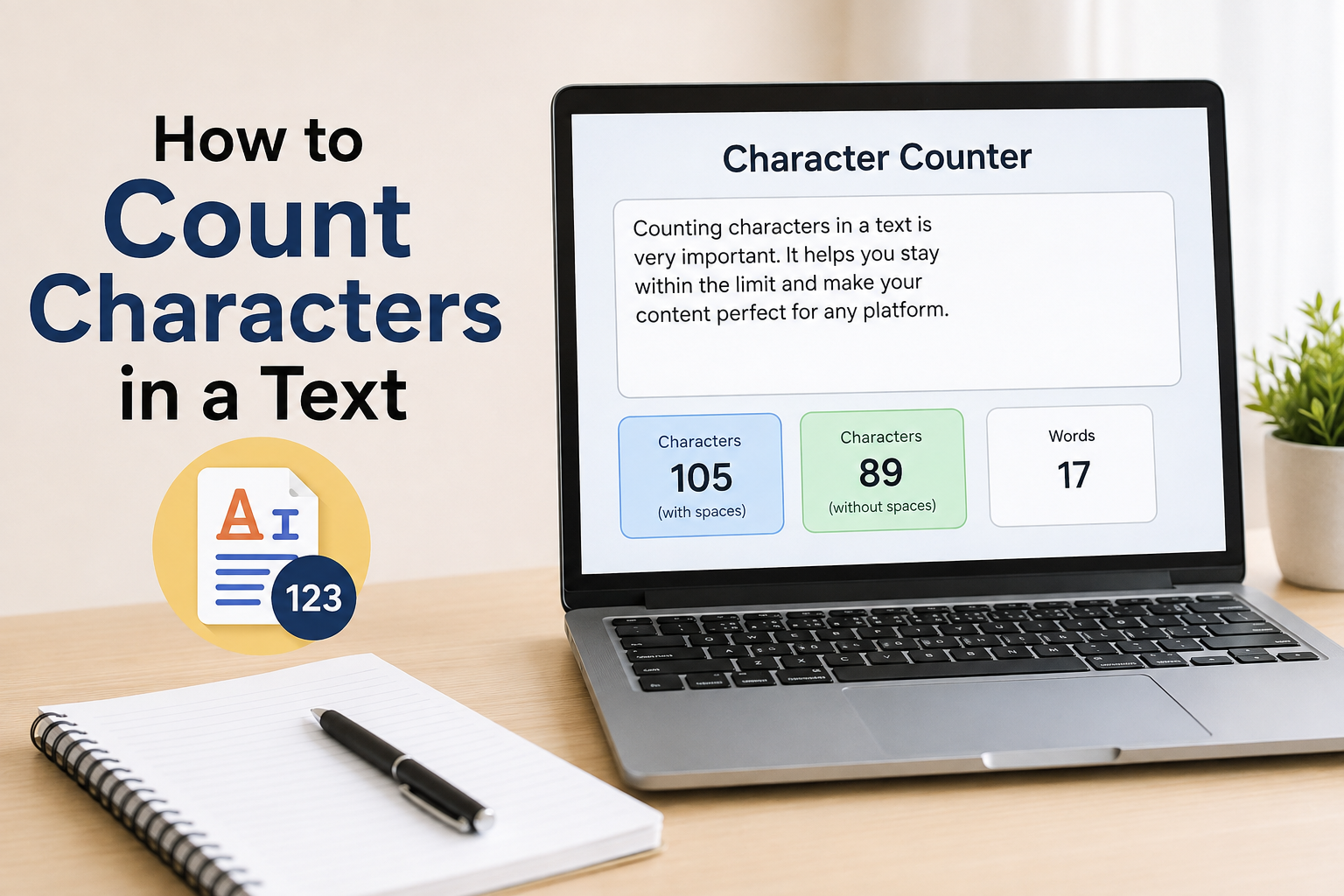
When I write an article, social media post, website description, or even a simple message, I sometimes need to know exactly how many characters I have used. At first, counting characters manually may seem like an easy task, but it quickly becomes difficult when the text contains hundreds or thousands of words. This is where a character counter becomes useful.
In my experience, knowing the character count helps me create content that fits within specific limits. Many websites, social media platforms, online forms, advertisements, and search engines have limits on how much text we can enter. If I do not check the character count, my text may be too long and could be rejected or cut off.
In this article, I will explain how to count characters in a text, what characters actually mean, why character counting is important, and how online character counting tools can make the process much easier.
What Is a Character?
Before learning how to count characters, I think it is important to understand what a character actually is.
A character is basically any individual symbol used in a piece of text. This can include letters, numbers, spaces, punctuation marks, and special symbols.
For example, take this simple sentence:
I love writing.
This sentence contains letters, spaces, and a punctuation mark. Depending on the character counter being used, spaces and punctuation may also be included in the total character count.
Characters can include uppercase letters such as A, B, and C, lowercase letters such as a, b, and c, numbers such as 1, 2, and 3, punctuation marks such as commas and periods, spaces between words, and special symbols.
Understanding this difference is useful because character count is not the same as word count.
Character Count vs Word Count
One mistake I often see is confusing character count with word count. They are two different measurements.
Word count tells you how many words are present in a text. Character count tells you how many individual characters are present.
For example:
Writing is my hobby.
This sentence has four words. However, it has more characters because every letter, space, and punctuation mark contributes to the character total when spaces are included.
This is why a paragraph can have a relatively small word count but still have a large character count.
When a website asks me to write something within a specific character limit, checking only the word count is not enough. I need to check the actual number of characters.
How to Count Characters Manually
The simplest method is to count every character one by one. However, I would not recommend this for long text because it takes too much time and makes mistakes very easy.
For a short sentence, manual counting can work.
Suppose I write:
Hello world
I can count each letter and the space between the words. If spaces are included, the space is counted as a character too.
The problem starts when the text becomes several paragraphs long. Imagine trying to count 500 or 1,000 characters manually. It would be tiring, slow, and there would be a high chance of making an error.
For this reason, I prefer using a character counter whenever I need an accurate result.
Use an Online Character Counter
The easiest way to count characters is to use an online character counting tool.
Most online character counters are very simple. I copy my text, paste it into the tool, and the website automatically calculates the number of characters.
Many tools also provide additional information such as word count, sentence count, and sometimes the number of characters with spaces and without spaces.
This makes online tools especially useful when I am preparing content for platforms that have strict text limits.
For example, if a website says that a description must be less than 160 characters, I can paste my description into a character counter and immediately see whether it fits.
Count Characters in Microsoft Word
Microsoft Word is another useful option for counting characters.
When I am already writing an article in Word, I do not necessarily need to open another website. Microsoft Word includes a word count feature that can show additional information about the document.
Depending on the version of Word, I can access the word count information from the status area or through the review tools.
The statistics can show information such as words, characters including spaces, and characters excluding spaces.
This is especially convenient for students, writers, and bloggers who already use Microsoft Word for their daily writing.
Count Characters in Google Docs
Google Docs is also useful for checking character count.
If I am writing online in Google Docs, I can use its word count feature to see more detailed statistics about my text.
This is helpful when I am working on an article, assignment, application, or other document with a character restriction.
One thing I like about using Google Docs is that I can check the count without copying the entire document into another website. Everything stays inside the document while I work.
Characters With Spaces vs Without Spaces
This is one of the most important things to understand when counting characters.
Some tools show two different numbers. One is the character count including spaces, and the other is the character count excluding spaces.
For example, consider this sentence:
I enjoy writing.
The count including spaces will be higher because the spaces between words are included.
The count excluding spaces will only consider the letters and punctuation marks, depending on how the tool defines its calculation.
When someone gives me a character limit, I always check whether they mean characters with spaces or characters without spaces. If the requirement does not clearly explain this, it is better to check the instructions carefully.
Why Character Count Is Important
Character counting is useful for many different types of writing.
One common use is social media. Some platforms limit the length of posts, captions, bios, or other text. Staying within the allowed limit can help make sure the complete message is displayed properly.
Character count is also important for online forms. Some forms allow only a certain number of characters in fields such as descriptions, comments, addresses, or personal statements.
Bloggers and website owners can also benefit from character counting. When creating short descriptions, titles, snippets, or promotional text, knowing the character length can help keep the content concise.
Students may also need character counting for assignments, applications, and online submissions.
In my opinion, character counting is a small task that can prevent many unnecessary problems.
How Character Counting Helps With SEO
Character count can also be useful when creating content for search engines.
When I write page titles and descriptions, I want the text to be clear, useful, and concise. Search results can display only a limited amount of text, so keeping titles and descriptions within a reasonable length is important.
A character counter can help me avoid creating descriptions that are unnecessarily long.
However, I do not focus only on the number. I also make sure the text sounds natural and provides useful information. There is no benefit in forcing keywords into a specific character limit if the result becomes difficult to read.
Good writing should always come first.
Counting Characters on a Mobile Phone
Today, many people write content using smartphones. If I need to count characters on my phone, an online character counter can be one of the quickest solutions.
I can select my text, copy it, open a character counting website, and paste the text into the provided box.
Some writing applications may also provide word and character statistics directly. The exact features depend on the application.
For short social media posts or descriptions, this method can save a lot of time.
What About Emojis and Special Symbols?
Emojis and special symbols can make character counting a little more complicated.
For example, an emoji may look like one symbol on the screen, but internally it can sometimes be represented by multiple Unicode code points. Different applications may therefore count certain emojis or combined symbols differently.
This is why, if I am working with a strict character limit, I prefer checking the exact text in the same type of tool or platform where I plan to use it.
This is particularly important for social media bios, usernames, SMS messages, and online forms with strict limits.
Tips for Staying Within a Character Limit
When I need to reduce the character count, I usually start by removing unnecessary words.
Instead of writing a long sentence, I look for shorter ways to communicate the same idea.
I also remove repeated information, unnecessary spaces, and words that do not add real value.
Another useful technique is to simplify sentences. Short and clear writing is often easier to understand anyway.
However, I avoid removing important information just to reach a specific number. The purpose of the text should remain clear.
Final Thoughts
Learning how to count characters in a text is simple, but it can be very useful. Whether I am writing a blog post, social media caption, website description, online application, or short message, knowing the character count helps me stay within required limits.
Manual counting can work for very short sentences, but for longer text, I find online character counters, Microsoft Word, and Google Docs much more convenient.
The most important thing is to understand whether spaces are included in the required count. I also pay attention to emojis and special symbols when working with strict limits.
In my view, character counting is one of those small writing skills that becomes surprisingly useful once you start creating content regularly. It saves time, reduces mistakes, and helps make sure that the text I write fits exactly where I need to use it.