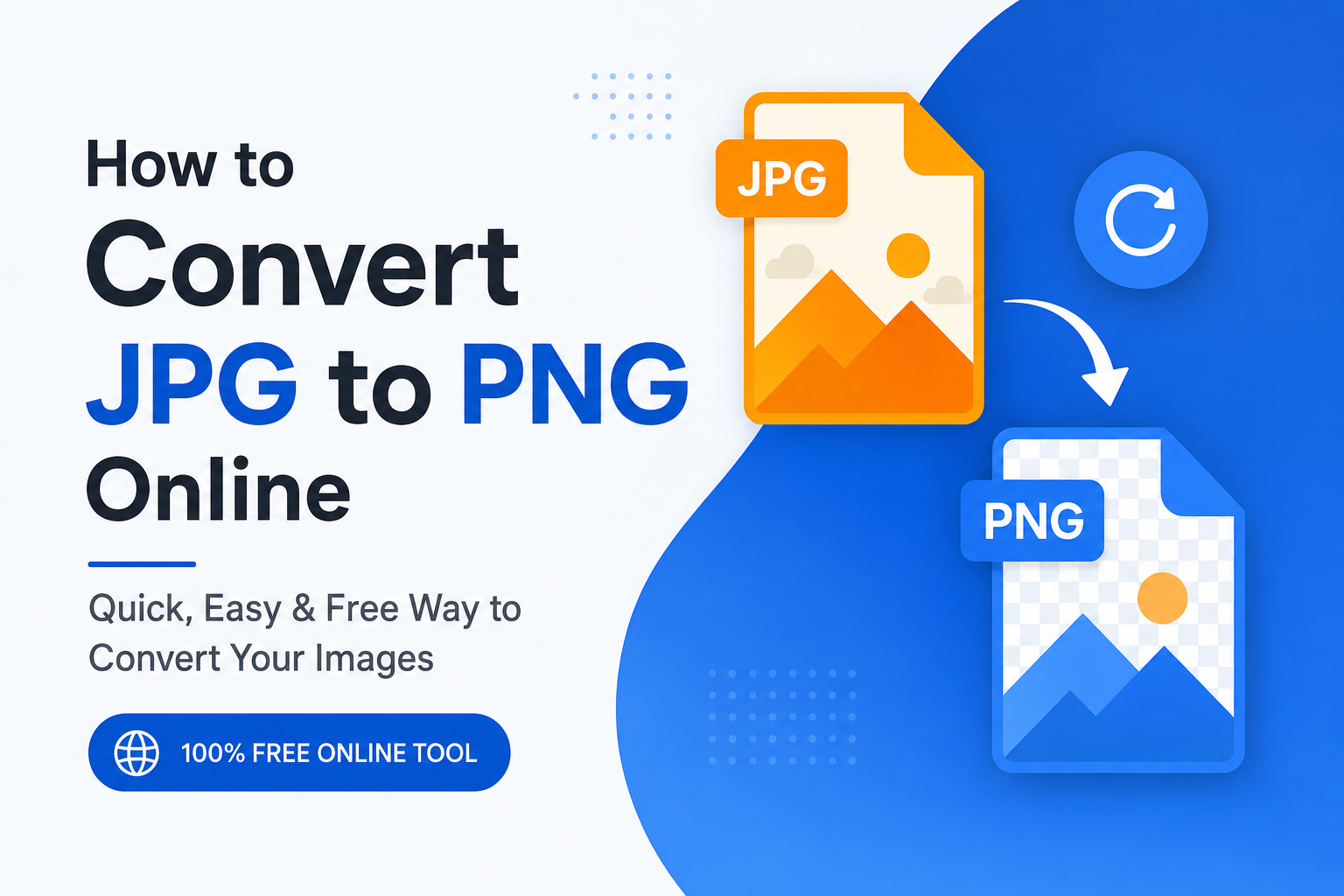
Converting a JPG image to PNG is something I sometimes need when I want better flexibility with an image. JPG is a very common image format, but PNG has some useful advantages, especially when I need transparency or want to preserve image details during editing. The good thing is that I do not need complicated software to make this conversion. I can convert JPG to PNG online in just a few simple steps.
In this article, I will explain how I convert JPG images to PNG online, why I choose PNG in certain situations, what happens during the conversion, and what I should check before downloading the converted image. I will keep everything simple so that even someone with no technical experience can follow along.
What Is a JPG Image?
JPG, also written as JPEG, is one of the most widely used image formats. I see JPG images almost everywhere, including websites, social media, digital cameras, phones, and email attachments.
The main reason JPG is so popular is that it can reduce image file size considerably. It uses a type of compression that removes some image information to make the file smaller. This is useful when I want to save storage space or upload an image quickly.
However, JPG does not support transparent backgrounds. It is also a lossy format, which means some image quality can be lost when the image is compressed and saved repeatedly.
What Is a PNG Image?
PNG stands for Portable Network Graphics. I usually consider PNG a better choice when I need transparency or want to preserve image details.
Unlike JPG, PNG uses lossless compression. This means the image can retain its original visual information more effectively when saved. PNG is especially useful for logos, icons, screenshots, graphics, illustrations, and images that contain sharp text or clear edges.
One important thing to understand is that converting a JPG to PNG does not magically restore quality that was already lost in the original JPG. The conversion changes the file format, but it cannot recover missing image information.
Why Convert JPG to PNG?
There are several reasons why I might convert JPG to PNG.
The first reason is transparency. PNG supports transparent backgrounds, while JPG does not. However, there is an important point here. If I convert a normal JPG with a solid background into PNG, the background will normally remain part of the image. Simply converting the format does not automatically remove the background.
Another reason is editing. PNG can be more suitable for graphics that I plan to edit because it uses lossless compression.
I may also choose PNG for screenshots, logos, diagrams, and text based graphics where maintaining sharp edges is important.
PNG can also be useful when I am preparing images for certain design projects where transparent backgrounds are required.
How to Convert JPG to PNG Online
The easiest method I use is an online image converter. There are many websites that provide this type of service, and most of them work in a similar way.
Step 1: Choose an Online JPG to PNG Converter
First, I open a trusted online image conversion website. I look for a simple tool that clearly supports JPG to PNG conversion.
Before uploading my image, I usually check whether the website explains how uploaded files are handled. This is especially important if the image contains personal, private, or sensitive information.
For ordinary images, online conversion is usually very convenient because I do not need to install additional software.
Step 2: Upload the JPG Image
After opening the converter, I look for an upload button. It may say something like Upload Image, Choose File, or Select JPG.
I click the button and select the JPG file from my computer or phone.
Some online converters also allow me to drag and drop the image directly into the browser window. If I have several JPG files, some tools may allow batch conversion.
Step 3: Start the Conversion
Once the JPG image has been uploaded, I look for the Convert button.
The website processes the image and changes the file format from JPG to PNG. The time required usually depends on the image size and the website itself.
For a normal image, the process may take only a few seconds.
Step 4: Download the PNG File
After the conversion is complete, I normally see a Download button.
I click it and save the PNG file to my device.
At this point, I have a PNG version of my original JPG image. I usually check the downloaded file before using it in a project or uploading it to a website.
Can I Convert JPG to PNG Without Losing Quality?
This is one of the most common questions I see about image conversion.
The answer needs a little explanation. When I convert a JPG to PNG, the PNG file itself can use lossless compression. However, the original JPG may already contain compression artifacts or lost image information.
For example, if I have a heavily compressed JPG, converting it to PNG will not bring back the details that were removed when the JPG was originally created.
So I would describe JPG to PNG conversion as a format change rather than a quality restoration process.
If I start with a high quality JPG, the converted PNG can look very good. But if the original JPG is already blurry or heavily compressed, the PNG will generally retain those existing limitations.
Does JPG to PNG Conversion Reduce File Size?
Usually, I do not convert JPG to PNG because I want a smaller file.
In many cases, PNG files are larger than JPG files, especially when the image is a photograph. JPG is designed to compress photographic images efficiently, while PNG is generally better suited to graphics, screenshots, logos, and images with areas of solid color.
After converting a JPG to PNG, I therefore check the file size. If the PNG is much larger than the original JPG, that is completely normal.
For websites, I consider the purpose of the image before choosing the format. Smaller image files can help improve loading performance, so I do not automatically assume PNG is better for every situation.
JPG vs PNG: Which Format Should I Use?
I choose JPG when I am working with photographs, travel pictures, product photos, or other images where keeping the file size relatively small is important.
I choose PNG when I need transparency, sharp graphics, screenshots, logos, icons, or images containing lots of text.
Here is a simple way I think about it.
JPG is usually better for photographs and smaller file sizes.
PNG is usually better for transparency and graphics where lossless compression is useful.
Neither format is automatically better in every situation. The right choice depends on what I plan to do with the image.
How to Convert JPG to PNG on a Phone
I can also convert JPG images to PNG using my smartphone.
The basic process is almost the same. I open an online JPG to PNG converter in my mobile browser, select the JPG image from my phone gallery or file manager, and upload it.
After the conversion finishes, I download the PNG image.
One thing I keep in mind on mobile devices is the image file size. Large images can take longer to upload if my internet connection is slow.
I also make sure I download the converted file to a location where I can easily find it later.
How to Convert Multiple JPG Images to PNG
If I have many JPG images, converting them one at a time can become inconvenient.
Some online converters support batch conversion. With these tools, I can select multiple JPG files and upload them together.
The website processes the images and provides the converted PNG files.
Before using a batch converter, I check whether there are limits on the number of images or the maximum file size. Some services may also offer different features depending on their free or paid plans.
For occasional conversions, a simple free tool is often enough for my needs.
Things I Check Before Using an Online Converter
I do not upload every image to every online converter. I prefer to spend a moment checking the website first.
I look for a clear interface and information about how uploaded files are handled. If I am working with private documents or personal photographs, I am more careful about using online services.
I also check the final image after downloading it.
I make sure the file opens correctly, the dimensions are what I expect, and the image looks normal.
If transparency is important, I also check whether the PNG actually contains transparency. Simply having a PNG extension does not mean that the background has been removed.
Common Problems When Converting JPG to PNG
Sometimes an online conversion does not produce the result I expect.
One common issue is a larger file size. As I mentioned earlier, PNG files can be significantly larger than JPG files, especially when converting photographs.
Another issue is expecting a transparent background. Converting a JPG to PNG does not automatically remove the background.
I may also notice that an image looks exactly the same after conversion. That is normal because changing the format does not necessarily change the visual appearance.
Another possible problem is an unsuccessful upload. This can happen because of a large file, unsupported image characteristics, browser issues, or limitations imposed by the online converter.
When this happens, I usually try a different browser or reduce the image size before uploading it again.
Is It Safe to Convert JPG to PNG Online?
For ordinary images, online conversion can be very convenient. However, I am careful with sensitive images.
If an image contains private information, confidential documents, personal identification details, or anything I would not want stored on a third party server, I prefer using an offline application when possible.
For normal website graphics, screenshots, public photographs, and similar files, an online converter can save a lot of time.
I also avoid downloading unnecessary software or clicking suspicious advertisements while using online tools.
Final Thoughts
For me, converting JPG to PNG online is one of the easiest image conversion tasks. I do not need advanced editing skills or complicated software. I simply choose a suitable online converter, upload my JPG image, start the conversion, and download the resulting PNG file.
The most important thing is understanding why I am converting the image. PNG is useful when I need transparency or want to preserve graphics using lossless compression. JPG is often more practical for photographs because it can provide much smaller file sizes.
I also keep in mind that converting JPG to PNG cannot restore image quality that was already lost in the original JPG. It only changes the format.
If I choose the format according to the purpose of the image and use a trustworthy online converter, the entire process can be quick and straightforward. Whether I am preparing a logo, screenshot, website graphic, or another type of image, knowing how to convert JPG to PNG gives me more flexibility when working with digital images.