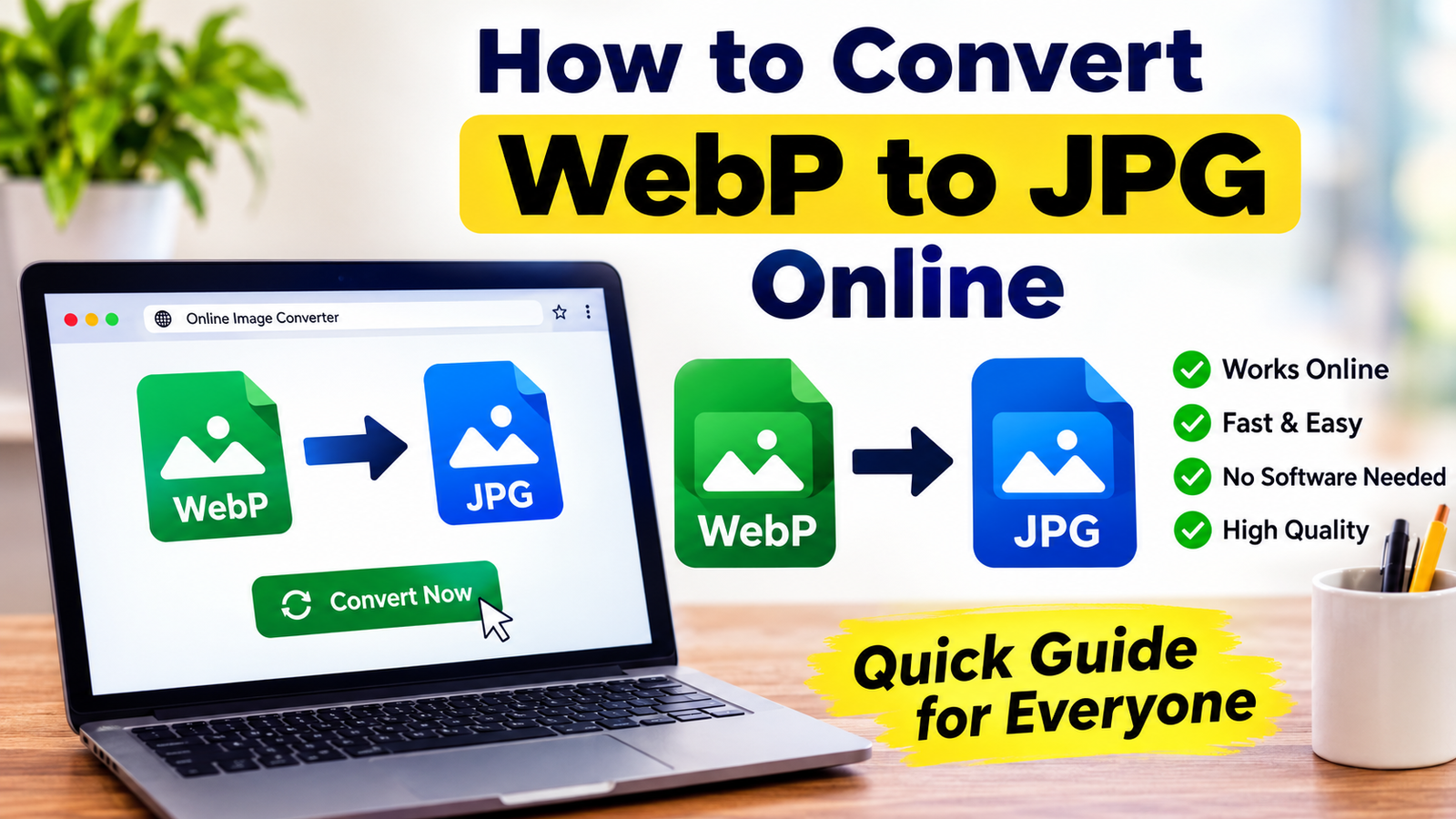
When I work with images for websites, blogs, social media, or documents, I often come across WebP files. WebP is a modern image format that can provide good quality while keeping file sizes relatively small. However, there are times when I need to use an image on a platform or application that does not properly support WebP. In those situations, converting WebP to JPG becomes a simple and useful solution.
The good thing is that I do not always need complicated software to change WebP into JPG. I can convert WebP to JPG online using a browser and an online image conversion tool. The process usually takes only a few moments and does not require advanced technical knowledge.
In this article, I will explain how I convert WebP images to JPG online, what I look for in an online converter, how to maintain image quality, and what mistakes I try to avoid.
What Is WebP?
Before converting an image, I think it is helpful to understand what WebP actually means. WebP is an image format developed to provide efficient image compression for the web. It can offer smaller file sizes while maintaining good visual quality.
Many websites use WebP because smaller images can help pages load faster. This can be useful for website owners because image size can affect loading performance and the overall browsing experience.
Even though WebP is useful, it is not always convenient for every situation. Some older applications, editing programs, websites, and devices may work better with JPG. This is one reason why I sometimes convert WebP files into JPG.
Why Convert WebP to JPG?
There are several reasons why I might need to convert a WebP image to JPG. The most common reason is compatibility.
JPG is one of the most widely supported image formats. Almost every modern computer, smartphone, browser, image editor, and document application can open JPG files.
I may also need JPG when uploading an image to a particular website that does not accept WebP. Some online platforms only allow common formats such as JPG or PNG.
Another reason is convenience. If I am sharing an image with someone who is using older software, JPG can be a safer option because it is more universally supported.
For these situations, an online WebP to JPG converter can save time.
How to Convert WebP to JPG Online
The process is generally straightforward. I can complete the conversion using almost any device with an internet connection.
First, I open a reliable online image conversion website in my browser. I look for an option that specifically supports WebP to JPG conversion.
Next, I select the WebP image from my computer or phone. Many online converters also allow me to drag and drop the image directly onto the webpage.
After uploading the image, I select JPG as the output format if it is not already selected.
Some tools provide additional settings. Depending on what I need, I may be able to adjust image quality, dimensions, or compression. If I want the converted image to look as close as possible to the original, I usually choose a high quality setting.
Once everything looks correct, I start the conversion process. The tool processes the WebP file and creates a JPG version.
Finally, I save the converted JPG file to my device. Before using it, I normally open the image and check its quality.
Choosing a Good Online Converter
I do not use every online converter I find. When choosing a tool, I pay attention to a few important things.
The first thing I check is simplicity. A good converter should make the process easy without forcing me to understand complicated settings.
I also look at the supported file size. Some websites limit how large an image can be. If I am converting a high resolution image, I want to make sure the tool can handle it.
Another important factor is image quality. Some converters use aggressive compression, which can make the final JPG look blurry or pixelated. I prefer tools that allow me to control the quality when possible.
Privacy is also important to me. If the image contains personal information, private documents, or sensitive content, I am careful about uploading it to an online service. I prefer services that clearly explain how uploaded files are handled and whether they are deleted after processing.
How to Keep Good Image Quality
One thing I always consider when converting WebP to JPG is quality. JPG uses lossy compression, which means some image information can be removed during compression.
If the original WebP image is already compressed, converting it to JPG may introduce some additional quality loss. However, the difference may be difficult to notice when using a high quality setting.
When an online converter provides a quality slider, I normally choose a high setting. This can help preserve details and reduce visible artifacts.
I also avoid repeatedly converting the same image between different formats. Every additional lossy conversion can potentially reduce quality.
For example, instead of converting WebP to JPG and then JPG to another compressed format several times, I prefer to keep the original file and create the final version directly from it whenever possible.
Can I Convert WebP to JPG on a Phone?
Yes, I can convert WebP to JPG using a smartphone as long as I have a browser and an internet connection.
The process is almost the same as on a computer. I open an online converter, upload the WebP image from my phone gallery or file manager, choose JPG, and start the conversion.
After the process finishes, I save the JPG file to my phone.
This can be especially useful when I receive a WebP image through a messaging app or download one from a website and need to use it somewhere that requires JPG.
Converting Multiple WebP Images
Sometimes I have more than one WebP image to convert. Converting every image separately can become inconvenient.
In that situation, I look for an online converter that supports batch conversion. A batch converter allows me to upload several images and process them together.
This can save a lot of time when I am preparing images for a website, organizing a photo collection, or converting multiple downloaded files.
However, I always check the tool’s file limits because some services restrict the number of files that can be uploaded at once.
WebP to JPG for Website Images
If I manage a website, I may wonder whether I should convert all WebP images to JPG. In my opinion, there is no need to convert images simply because JPG is familiar.
WebP can be an excellent choice for websites because it can provide efficient compression and good quality. If my website and visitors’ browsers support WebP properly, there may be no reason to change it.
I mainly convert WebP to JPG when there is a specific compatibility requirement.
For example, if a website upload system only accepts JPG, converting the image makes sense. The same applies to older software or platforms that do not recognize WebP.
Common Problems During Conversion
Although WebP to JPG conversion is usually easy, I can sometimes encounter problems.
One common issue is poor image quality. This can happen when the converter uses strong compression. If the result looks blurry, I try using a higher quality setting.
Another problem is a large output file. Increasing quality can sometimes increase the JPG file size. If the file becomes too large, I may reduce the quality slightly until I find a reasonable balance.
Sometimes an image may also appear different after conversion. Certain features, such as transparency, need special attention.
WebP images can support transparency, while standard JPG images do not. If the original WebP has a transparent background, converting it to JPG usually requires the transparent area to be replaced with a solid background.
This is something I check before using the converted image.
Is Online WebP to JPG Conversion Safe?
For ordinary images, using a reputable online converter can be convenient. However, I avoid uploading sensitive images unless I trust the service and understand its privacy practices.
I also pay attention to whether a website is filled with misleading download buttons or excessive advertisements. A clean and straightforward interface is usually easier and safer to use.
For private photographs, identification documents, business files, or other sensitive images, I prefer an offline conversion method when possible.
What I Do After Converting an Image
After converting a WebP image to JPG, I do not immediately upload it somewhere. I first open the JPG and inspect it.
I check whether the image looks sharp, whether the colors are correct, and whether the dimensions are still appropriate.
I also check the file size. If the file is much larger than necessary, I may compress it again using a suitable image optimization tool.
This small checking step helps me avoid uploading an image that has poor quality or an unnecessarily large file size.
Final Thoughts
In my experience, converting WebP to JPG online is one of the easiest image conversion tasks. I do not need professional editing software or advanced technical skills. With a browser and a reliable online converter, I can usually complete the process in just a few steps.
I choose a WebP to JPG converter, upload my image, select JPG, adjust the quality if necessary, start the conversion, and save the resulting file. After that, I check the image to make sure everything looks right.
For everyday images, this process is quick and convenient. The main things I keep in mind are image quality, file size, privacy, and compatibility.
WebP remains a useful format for modern websites, but JPG is still extremely popular because it works almost everywhere. Whenever I need better compatibility or a platform specifically requires JPG, converting WebP to JPG online gives me a simple way to prepare my image without installing complicated software.